Add Watermark to PDF Without Uploading — The Complete Privacy Guide (2026)
 Md.R K
— Senior PDF Engineer & Browser Security Specialist
14 min read
4,300 words
Md.R K
— Senior PDF Engineer & Browser Security Specialist
14 min read
4,300 words
⚡ Quick Answer — Featured Snippet
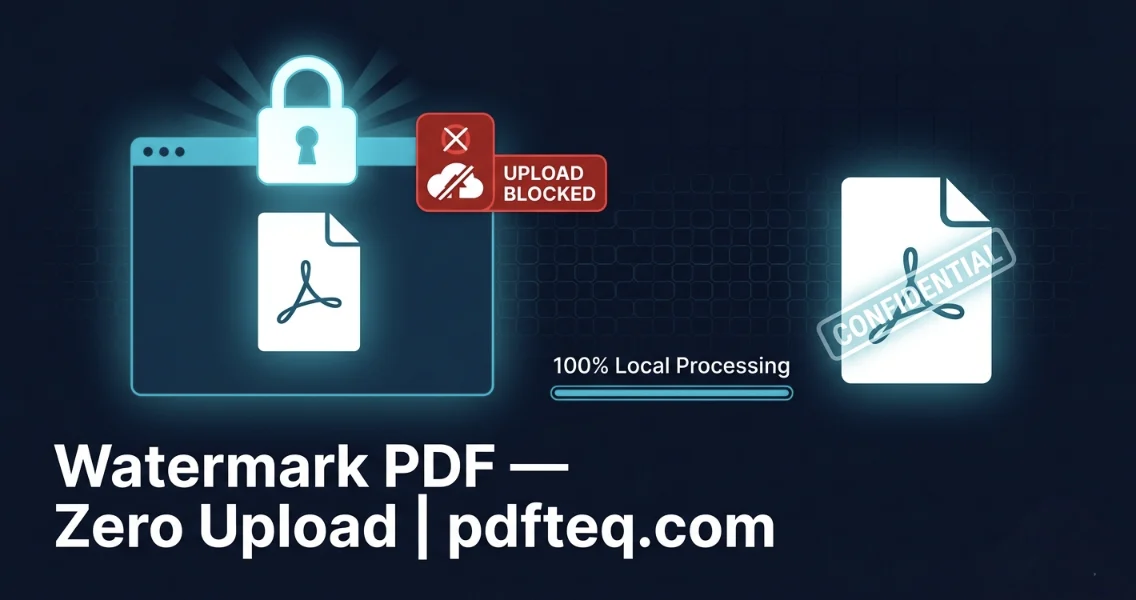
To add a watermark to a PDF without uploading it to any server, use a client-side browser tool like PDFteq. The entire process — loading, stamping, and downloading — happens locally inside your browser. Your document never leaves your device, ensuring complete privacy for confidential, legal, or sensitive PDF files.
Every time you upload a sensitive document to a random online tool, you are trusting a stranger's server with data that may be confidential, privileged, or legally protected. For contracts, medical records, legal briefs, or financial statements — that is a risk most professionals simply cannot afford.
The good news: you do not need to upload anything. Modern browser technology makes it possible to watermark PDF documents entirely inside your browser tab — zero server contact, zero storage, and zero data risk. This guide explains how, why it matters, and exactly how to do it in 2026.
📋 Table of Contents
- What Is Client-Side PDF Watermarking?
- Why Uploading Your PDF Carries Real Risks
- How Zero-Knowledge Watermarking Works
- Step-by-Step: Watermark a PDF Without Uploading
- Best Watermark Settings for Every Use Case
- Text Watermark vs. Logo Watermark
- Tool Comparison: Who Actually Never Uploads?
- Mobile Guide: iPhone & Android (No App)
- GDPR, HIPAA & Legal Compliance
- 10 Real-World Use Cases
- Pro Tips from the Engineering Team
- FAQ (10 Questions)
- Conclusion
What Is Client-Side PDF Watermarking?
Client-side processing means the tool's code runs inside your browser using your own computer's processing power — not a remote server's. Your PDF is read from disk into the browser's memory, modified there, and returned as a download. The file never travels anywhere.
💡 Client-Side vs. Server-Side — Core Difference
- Server-Side (most online tools): File uploads → travels to a remote cloud server → processed there → downloaded back. The provider's server sees your document content.
- Client-Side (PDFteq): File opens in browser memory only → processed locally by JavaScript + WebAssembly → downloaded directly. No server ever touches your file.
The technology making this possible combines PDF-lib v1.17.1 — a complete JavaScript PDF manipulation library — with WebAssembly, a near-native-speed execution environment built into every modern browser (Chrome, Firefox, Safari, Edge). Together they deliver desktop-application-level PDF processing directly inside your browser tab.
Why Uploading Your PDF Carries Real Risks
Most users accept the upload step without thought. For everyday documents, that may be fine. For anything sensitive, it is a meaningful risk.
- Undisclosed data retention: Many "free" tools retain uploaded files longer than users expect, or use them to improve OCR and AI models. Always check a tool's privacy policy before uploading sensitive content.
- Metadata exposure: PDFs often contain hidden author names, revision history, and tracked changes that become readable to any server processing the file.
- Regulatory consideration: Uploading EU personal data (GDPR), patient records (HIPAA), or financial data (PCI-DSS) to a non-compliant tool may create compliance obligations or constitute a reportable breach, depending on your jurisdiction and the tool's terms.
- Jurisdiction mismatch: An EU document uploaded to a US-based server may fall under US jurisdiction, potentially affecting GDPR protections.
💡 Expert Insight: Bar associations, medical ethics boards, and financial compliance frameworks increasingly specify that documents containing privileged or regulated information should be processed using client-side or locally-installed tools wherever possible. A client-side watermark tool eliminates server-side risk by design, not by policy.
How Zero-Knowledge Watermarking Works (Technical Deep-Dive)
Understanding the technical workflow builds legitimate trust. Here is exactly what PDFteq does — and does not do — when you watermark a PDF.
Phase 1 — Tool Code Loads (One-Time, Network Required)
When you visit the tool page, your browser downloads PDFteq's JavaScript bundle and the PDF-lib library from a CDN. This code is cached. From this point on, your browser operates independently — no further server communication is required for your file.
Phase 2 — PDF Opens via Browser File API (Local, No Network)
When you select or drop a PDF, the browser's File API reads the raw
binary data from your local storage into an ArrayBuffer in browser memory.
This is a sandboxed, zero-network operation. Open DevTools Network tab while doing this —
you will observe zero outgoing requests containing your file data.
Phase 3 — PDF-lib Parses the Document Structure (In-Memory)
PDF-lib reads the PDF's internal byte structure — pages, MediaBox dimensions, content streams, fonts, cross-reference table, and rotation values. It constructs an editable in-memory representation without touching the original file on disk.
Phase 4 — Vector Overlay Engine Injects the Watermark
For text watermarks, PDFteq calculates the center point of each page's coordinate
system, accounting for page rotation, then calls page.drawText() with your
configured parameters. The text is embedded as a vector path inside the
page's content stream — not as a rasterised image or removable annotation layer.
⚙️ Why Vector Injection Matters
- Resolution independent: The watermark text is mathematically defined — it stays crisp at 5000% zoom because it has no pixel resolution ceiling.
- File-size efficient: A vector text watermark across all pages of a 50-page PDF adds approximately 8–15 KB to the output size.
- Content-stream embedded: Unlike PDF stamp annotations (which sit in a separate annotation layer and can be deleted in one click), a content-stream watermark is part of the page itself — far more resistant to removal.
Phase 5 — PDF Serialised and Downloaded Locally
PDF-lib calls pdfDoc.save(), serialising the modified document back to
raw PDF binary. This binary blob is passed to the browser's native download API. A new
file appears in your Downloads folder. The ArrayBuffer is released by the browser's
garbage collector. No data persists beyond your local disk.
🔐 Try It Now — Zero Upload, Zero Risk
Add a professional text or logo watermark to any PDF in under 90 seconds. Free forever. No login. No file upload. Works on every device.
Add Watermark to PDF — Free →Step-by-Step: How to Watermark a PDF Without Uploading
Works on Windows, macOS, Linux, iPhone, iPad, and Android. No software to install. No account required. Completely free.
1Open PDFteq in your browser
Navigate to pdfteq.com/tools/watermark-pdf.php
in Chrome, Firefox, Safari, or Edge. The page loads the full PDF-lib processing engine
into your browser — no installation step.
2Load your PDF locally
Drag your PDF onto the drop zone, or click to browse. The success message shows your
filename. Nothing is transmitted — the file opens in browser RAM only. Maximum
supported size: 50 MB.
3Select watermark type: Text or Logo
Text mode: Type up to 100 characters — CONFIDENTIAL, DRAFT, © 2026 YourName,
your company name, or any custom stamp message.
Logo mode: Upload a PNG (transparent background recommended) or JPG file up to
10 MB. Your logo file is also processed locally — it never leaves your device either.
4Adjust appearance settings
Three sliders control the output:
• Opacity — 30% is ideal for readability without obstructing content.
• Rotation — 45° diagonal is the professional standard for security
stamps. Use 0° for horizontal logo placements.
• Size — 50px (text) or 50% scale (logo) as starting points.
5Choose layout pattern
Single Center — One stamp per page, centered. Best for standard branding and
confidentiality marks.
Grid Tile — 3×4 mosaic grid covering the full page. Best for high-security
documents where cropping attacks must be prevented.
6Apply and download
Click Apply Watermark. Processing takes 1–5 seconds depending on PDF
size and page count. Your browser generates the watermarked output and triggers an
automatic download. No data is stored. Done.
💡 Test on One Page First: For large or complex PDFs, use our Split PDF tool to extract a single page, verify your watermark settings on that test file, then apply to the full document. Split PDF is also fully client-side — zero upload.
Best Watermark Settings for Every Use Case
These settings have been tested and refined across document types. Use them as your starting point and adjust to taste.
| Document Type | Watermark Text | Opacity | Rotation | Layout | Size |
|---|---|---|---|---|---|
| Legal Contract — Confidential | CONFIDENTIAL | 35% | 45° | Grid Tile | 55px |
| Work-in-Progress Draft | DRAFT | 25% | 45° | Single Center | 65px |
| Corporate Branding Logo | Logo (PNG) | 20% | 0° | Single Center | 50% scale |
| Photography Proof Sheet | Logo (transparent) | 40% | 0° | Grid Tile | 40% scale |
| Copyright Protection | © 2026 YourName | 18% | 45° | Single Center | 45px |
| Internal Distribution Only | FOR INTERNAL USE ONLY | 28% | 45° | Single Center | 48px |
| Real Estate Listing Sample | Logo + SAMPLE | 18% | 0° | Single Center | 60% scale |
| Anti-Copy Security Mark | DO NOT COPY | 50% | 45° | Grid Tile | 58px |
| Patient / Medical Record | CONFIDENTIAL — PATIENT | 32% | 45° | Grid Tile | 50px |
| Financial Report — Board | STRICTLY CONFIDENTIAL | 35% | 45° | Grid Tile | 52px |
Text Watermark vs. Logo Watermark — Which to Choose?
Choose Text When
- You need to communicate a specific instruction: CONFIDENTIAL, DRAFT, APPROVED, SAMPLE, DO NOT DISTRIBUTE.
- Speed is the priority — no logo asset to prepare or scale.
- The document will be read on screen and text clarity matters.
- You need the mark to be readable in multiple languages or with special characters.
Choose Logo When
- The primary goal is brand ownership — your logo establishes identity visually.
- You are distributing proposals, portfolios, or client-facing materials.
- You already have a professional transparent-background PNG ready to use.
- The document contains images or visual content where a text stamp would clash aesthetically.
💡 Power Move — Apply Both: Watermark with CONFIDENTIAL text (Grid Tile, 30% opacity) first. Then open the result and add your logo watermark (Single Center, 15% opacity). Two-layer watermarks are substantially harder to remove cleanly using any editing tool.
Tool Comparison: Which PDF Watermark Tools Actually Never Upload?
Many tools claim privacy. Fewer deliver it. The following comparison is based on publicly available feature information and tool documentation.
| Tool | No Server Upload? | 100% Free? | No Login? | Text + Logo? | Grid Tile? | Mobile Browser? | Price |
|---|---|---|---|---|---|---|---|
| PDFteq ⚡ | ✔ Client-side | ✔ Always | ✔ Yes | ✔ Both | ✔ Yes | ✔ Yes | Free |
| iLovePDF | ✘ Uploads | Limited (2/day) | ✔ Basic | ✔ Both | ✘ No | ✔ Yes | Free / ~$7/mo |
| Smallpdf | ✘ Uploads | ✘ Paywall | ✘ Required | ✔ Both | ✘ No | ✔ Yes | ~$9/mo |
| PDF24 | ✘ Uploads | ✔ Yes | ✔ Yes | Text only | ✘ No | ✔ Yes | Free |
| Adobe Acrobat Pro | ✔ Desktop | ✘ Paid | ✘ Adobe ID | ✔ Both | ✔ Pro | ✘ Limited | ~$23/mo |
| Foxit PDF Editor | ✔ Desktop | Trial only | ✘ Account | ✔ Both | ✔ Yes | ✘ No | ~$79/yr |
* Based on publicly available feature information and tool documentation, April 2026. Pricing may change.
Mobile Guide: Watermark a PDF on iPhone & Android Without an App
No app download is needed. Modern mobile browsers fully support WebAssembly and the File API — the same technologies that power the desktop version.
iPhone / iPad — Safari or Chrome iOS
1Open Safari and navigate to
pdfteq.com/tools/watermark-pdf.php.
2Tap the upload zone. iOS will present your Files app, iCloud Drive, or Photos — select your PDF from any of these.
3Configure your watermark using the responsive mobile UI — sliders work with touch input.
4Tap Apply Watermark. Safari downloads the result automatically to your Files app.
Android — Chrome or Firefox
The workflow is identical. Open Chrome or Firefox on your Android device, visit the tool URL, select your PDF from the Files manager, configure and apply. The watermarked PDF goes to your Downloads folder.
GDPR, HIPAA & Legal Compliance — Why Client-Side Is the Safest Choice
🇪🇺 GDPR (EU General Data Protection Regulation)
GDPR Article 5(1)(f) requires that personal data be processed with "appropriate technical security." Uploading EU resident data to a non-EU server without a valid Data Processing Agreement (DPA) may not satisfy this requirement in all circumstances. A client-side tool removes the question entirely — no personal data crosses any network boundary to a third party.
🏥 HIPAA (US Health Insurance Portability and Accountability Act)
When a HIPAA-covered entity uses a third-party tool to process Protected Health Information (PHI), that tool provider typically must sign a Business Associate Agreement (BAA). Most general-purpose free online PDF tools do not offer BAAs. Using a client-side tool like PDFteq eliminates this concern entirely — PHI never enters any third-party infrastructure, so no BAA is required for the processing step.
⚖️ Attorney-Client Privilege & Bar Ethics
ABA Formal Opinion 477R and similar ethics guidance from various bar associations require attorneys to take reasonable measures to protect confidential client communications when using technology. Transmitting privileged documents through an insecure or non-compliant third-party service creates risk. Client-side processing is a technically strong way to satisfy a "reasonable measures" standard, since no transmission to any third party occurs.
💰 PCI-DSS, SOC 2 & ISO 27001
These frameworks require organisations to demonstrate control over data flows. A client-side tool produces a trivially auditable data flow: device → browser memory → device. No third party is in the chain. Compliance evidence is straightforward to document.
10 Real-World Use Cases for Watermarking PDFs Without Uploading
Legal Contracts
Stamp NDAs and agreements CONFIDENTIAL before sending to counterparties. Client-side processing protects privilege.
Medical Records
Mark patient summaries CONFIDENTIAL — PATIENT RECORD. No server upload means no PHI leaves your device.
Business Proposals
Brand every proposal page with your company logo at 20% opacity before sending to prospects.
Photography Proofs
Apply Grid Tile logo watermark to proof PDFs before sharing with clients awaiting payment.
Academic Research
Mark pre-publication papers DRAFT — DO NOT CITE to prevent premature attribution.
Real Estate Listings
Add SAMPLE stamps to property brochures distributed at open houses or sent digitally.
Financial Reports
Stamp board packs and investor materials STRICTLY CONFIDENTIAL before distribution.
Design Portfolios
Watermark design proof PDFs with your studio logo for client presentations and reviews.
Government & Policy
Mark draft policy documents FOR REVIEW ONLY to prevent premature public distribution.
Education Materials
Protect curriculum PDFs and exam papers with DO NOT DISTRIBUTE copyright marks.
Pro Tips from the PDFteq Engineering Team
💡 Tip 1 — Verify Zero Upload with Browser DevTools
Press F12 → Network tab → filter "Fetch/XHR". Select and load your PDF, then click Apply Watermark. You will see zero outbound requests carrying your file data. This is how you verify any tool's privacy claims — not by reading a policy, but by inspecting actual network behaviour.
💡 Tip 2 — Prepare Logo as Transparent PNG
Export your logo from Illustrator, Figma, or Canva as PNG with a transparent (not white) background. A 400×200 px logo at 72 DPI is ideal — visually sharp, quick to process, and light on file-size impact.
💡 Tip 3 — Grid Tile Defeats Cropping Attacks
A single centered watermark can be removed in seconds by cropping. A 3×4 grid tile covers the full page — to remove it, an attacker must destroy substantial page content, which is immediately obvious. Use Grid Tile for any document where preventing unauthorised redistribution is the primary goal.
💡 Tip 4 — Watermark Before Password-Protecting
Always stamp the watermark first, then add password protection. This ensures the watermark is embedded in the content stream before the encryption layer wraps the file. Watermarking an already-encrypted PDF may fail or produce unexpected results.
💡 Tip 5 — Combine Split, Watermark, and Merge for Section-Level Control
Use Split PDF to extract specific page ranges. Watermark each range with a different stamp (e.g., "LEGAL ANNEX — PRIVILEGED" on one section, "FINANCIAL SUMMARY — CONFIDENTIAL" on another). Then use Merge PDF to reassemble. All three tools are free, client-side, and require no login.
💡 Tip 6 — Compress After Watermarking If File Size Grew
Logo watermarks (JPG especially) can increase PDF file size noticeably. After watermarking, use PDFteq Compress PDF to bring the file back to a manageable size for email or upload. Compressing after watermarking — not before — preserves the watermark quality in the output.
Frequently Asked Questions
Use PDFteq's free browser tool at pdfteq.com/tools/watermark-pdf.php. Drop your PDF into the tool — it loads into browser memory locally. Configure text or logo, click Apply Watermark, and download the result. No file is transmitted to any server at any point. You can verify this yourself by watching the Network tab in browser DevTools during processing.
Yes — it is the safest online method available. Because your file never leaves your device, there is no server breach risk, no unauthorised storage, and no third-party access. Legal, medical, and financial professionals actively seek out client-side tools for this reason. The security guarantee comes from technical architecture, not from trusting a provider's privacy policy.
It means the tool's server never sees your document content. The server delivers the tool's JavaScript code to your browser once, then your browser processes everything independently. The provider has zero knowledge of what file you loaded, what it contained, or what watermark you applied. This is architecturally different from "we delete files after 1 hour" — your file is never present on any server to begin with.
Yes. Once PDFteq's page has fully loaded and the PDF-lib library is cached by your browser, you can disconnect from the internet. The watermarking will still function because all processing is local. The network connection is only needed to initially load the page — not to process your file.
No. PDFteq injects the watermark as a vector path in the PDF content stream — not as a rasterised image overlay. Text watermarks stay perfectly crisp at any zoom level. For a 10-page text PDF, a watermark adds approximately 5–15 KB to the file size. Original text rendering and image quality are completely preserved.
Open Safari on your iPhone and go to pdfteq.com/tools/watermark-pdf.php. Tap the upload zone and select your PDF from the Files app or iCloud Drive. The watermark tool runs entirely in Safari's browser engine — no app download required. Configure your watermark settings and tap Apply. The result downloads to your Files app automatically.
PDFteq is the primary free tool that processes files client-side — you can confirm this by watching the Network tab in browser DevTools during processing. Offline desktop applications (Adobe Acrobat, Foxit, PDF-XChange Editor) also process locally by definition. Most popular online tools — including iLovePDF, Smallpdf, and PDF24 — upload files to their servers, even if they delete them after a short window.
Yes. In PDFteq's logo watermark mode, your PNG or JPG logo is loaded into browser memory using the File API — the same local-only method used for the PDF. No logo data is transmitted over the network. Both the document and the logo are processed entirely on your device. Use a transparent-background PNG for the cleanest result.
No. Many "free" online tools add a "Made with [Tool Name]" watermark to your output unless you pay to remove it. PDFteq does not add any branding to your document. The output contains only the watermark you configured. The tool is genuinely free with no hidden upsells, paywalls, or brand injections.
It depends on the purpose: for standard confidentiality stamps, 30–35% opacity provides clear visibility while keeping the underlying text readable. For subtle branding logos, 15–20% is enough to establish ownership. For DRAFT indicators, 25% is a good balance. For maximum-security anti-copy marks, you can go up to 50%. Always open the output and check text readability before distributing.
Conclusion — Watermark PDFs the Right Way in 2026
The ability to watermark a PDF without uploading it is no longer a niche technical workaround. It is the correct, responsible approach for any professional handling documents that contain personal data, privileged information, trade secrets, or regulated content.
PDFteq's client-side watermark tool delivers everything a professional needs — vector text stamps, transparent PNG logo support, Grid Tile mosaic patterns, full opacity and rotation control — without any of the risks that come with uploading documents to unknown third-party infrastructure.
The process takes under 90 seconds, requires no account, costs nothing, and works on every device from desktop to iPhone.
🔐 Watermark Your PDF — Zero Upload, Zero Risk
Free. Private. No sign-up. Works on desktop and mobile. Your files stay on your device — always.
Add Watermark to PDF — Free →Related Guides & Tools
🖊️ 7 Ways to Add Watermark to PDF (Free & Paid)
Complete 2026 guide: Adobe Acrobat, Mac Preview, online tools, and more.
📦 Batch Watermark PDF Files Free — Business Guide 2026
Watermark 10–1000 PDFs efficiently. Includes free Python automation script.
✂️ Split PDF — Free, No Upload
Extract specific pages before watermarking. Client-side and instant.
Md.R K leads the PDF processing engine at PDFteq with 9 years of experience in browser-based document security, WebAssembly PDF rendering, and client-side data-privacy architecture.