Quick Answer: What is the easiest way to extract text from a PDF?
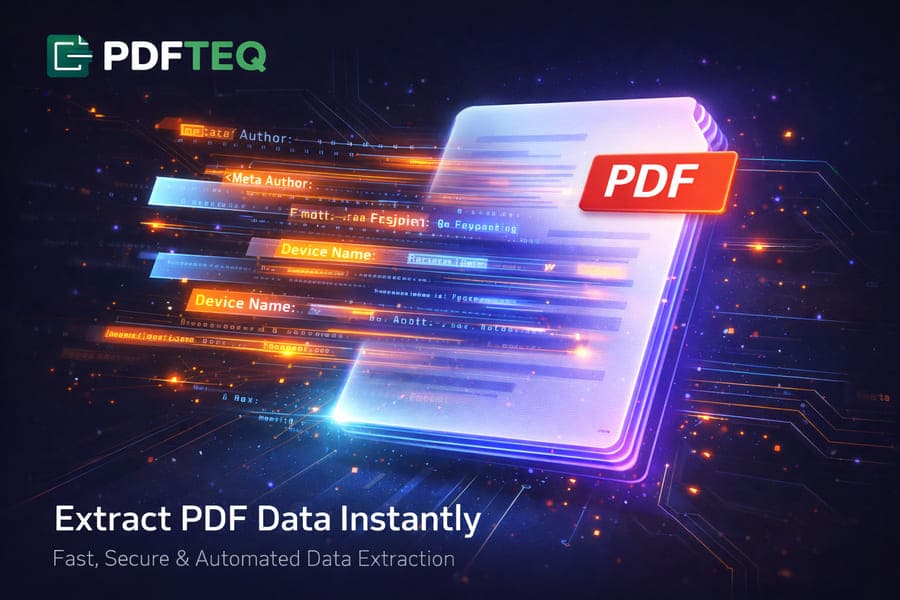
The easiest, fastest, and most secure method is a client-side PDF to text extractor. Open PDFTEQ's free extractor, drop in your file, and the browser parses the document's content streams locally — producing a clean .txt file that never uploads your data to any server.
Ready to Extract Text from PDF?
Skip the reading and parse your document locally in browser memory right now.
Launch PDF to Text ToolPDF text extraction is the process of converting the invisible text layer of a Portable Document Format (PDF) file into machine-readable plain text. It works by decompressing the file's content streams, mapping character glyphs to Unicode values, and reordering characters by their page coordinates into logical reading order. Image-based (scanned) PDFs require OCR instead, because they contain pictures of text rather than an active text layer.
Why Extracting Text from a PDF Is Harder Than It Looks
Have you ever tried to copy and paste text from a PDF document, only to end up with a jumbled mess of broken sentences, missing spaces, and bizarre symbolic characters? You are not alone. PDF to text extraction is one of the most sought-after technical capabilities in the digital world — and one of the most misunderstood.
To understand why, look at the format's origin. Unlike Word documents or plain text files that store content logically (sentences, paragraphs, headings), a PDF is primarily a display format — a digital piece of paper. It tells a screen or printer exactly where to place each shape, line, or letter using precise X and Y coordinates. It has no inherent concept of a paragraph, a column, or reading order.
That is why naive copy-paste so often fails: to produce clean text, software must decode the document's internal content stream — the raw drawing instructions of the file — and rebuild meaning from coordinates. This guide explains how that pipeline works, which tools do it best, and how developers wire it into Python scripts and AI systems.
Why Client-Side PDF Text Extraction Matters
When choosing a free online PDF to text converter, most people overlook a critical factor: data security. Many traditional tools require you to upload files — potentially sensitive legal contracts, financial statements, or medical records — to their remote servers, where processing and temporary storage happen outside your control.
PDFTEQ uses a privacy-first, client-side architecture: the extraction engine runs entirely inside your web browser with JavaScript. Your file is read from your disk into your device's memory, parsed on your device, and converted on your device. You can verify this yourself — open your browser's developer tools, watch the Network tab, and note that no document data is transmitted.
Absolute Privacy
Zero-knowledge processing: your data never leaves your device. No uploads, no server storage, nothing to breach.
Lightning Fast
No upload queues or download waits — extraction happens locally in milliseconds, even on slow connections.
Unlimited Access
Extract from as many documents as you need. No accounts, no daily caps, no watermarks, no paywalls.
The Engineering: How Extractors Parse Content Streams
Phase 1: Decompressing Content Streams
To save space, most PDF content streams are compressed with algorithms like FlateDecode (the same family as ZIP). The extractor first inflates these streams to reveal raw PDF operators — such as BT (begin text), Tj/TJ (show text), and ET (end text).
Phase 2: Glyph-to-Unicode Mapping
PDFs rarely store letters directly; they store font-internal glyph IDs. An instruction might say "draw glyph #45." To recover readable text, the extractor consults the font's ToUnicode CMap table to translate glyph #45 into the letter "A". If a PDF was produced carelessly and lacks this CMap, extraction yields gibberish — the root cause of most "broken copy-paste" complaints.
Phase 3: Spatial Reconstruction and Reading Order
A content stream may draw a page's footer before its header, so raw text arrives out of order. A good extractor reads the bounding-box coordinates of every glyph, sorts them top-to-bottom and left-to-right (mirrored for right-to-left scripts), groups them into lines and blocks, and thereby reconstructs paragraphs and multi-column layouts in logical reading order.
Developer's Hub: Copy-Paste Code Recipes (CLI + Python)
For data scientists and developers, bulk PDF text extraction is a routine requirement. Here are working, copy-pasteable recipes for the tools the industry actually uses — command line first, then Python.
Recipe 1 — pdftotext (Poppler): the fastest no-code option
Install with brew install poppler (macOS), sudo apt install poppler-utils (Linux), or download the Windows build. The -layout flag preserves columns; -f/-l select a page range; a trailing - writes to stdout.
# Basic extraction: input.pdf -> input.txt
pdftotext input.pdf

# Preserve multi-column layout
pdftotext -layout input.pdf output.txt

# Extract pages 5-12 only, print to terminal
pdftotext -f 5 -l 12 input.pdf -
Recipe 2 — pypdf: simple, dependable basics
The industry standard for basic manipulation and extraction (pip install pypdf). Great for splitting/merging too; can struggle with complex multi-column layouts.
from pypdf import PdfReader

reader = PdfReader("report.pdf")
text = "\n".join(page.extract_text() or "" for page in reader.pages)

with open("report.txt", "w", encoding="utf-8") as f:
    f.write(text)
Recipe 3 — pdfplumber: tables straight into Excel
Best-in-class for coordinate-level work and tabular data (pip install pdfplumber pandas). This is the answer to "how do I extract PDF tables into Excel."
import pdfplumber, pandas as pd

rows = []
with pdfplumber.open("statement.pdf") as pdf:
    for page in pdf.pages:
        for table in page.extract_tables():
            rows.extend(table)

df = pd.DataFrame(rows[1:], columns=rows[0])   # first row = headers
df.to_excel("statement.xlsx", index=False)
Recipe 4 — PyMuPDF (fitz): raw speed at scale
The fastest mainstream library (pip install pymupdf) — thousands of pages per minute, plus images and metadata in the same pass.
import fitz  # PyMuPDF

with fitz.open("book.pdf") as doc:
    with open("book.txt", "w", encoding="utf-8") as out:
        for page in doc:
            out.write(page.get_text("text"))   # also: "blocks", "dict", "markdown"-style via pymupdf4llm
Recipe 5 — Batch an entire folder to .txt
import pathlib, fitz

for pdf in pathlib.Path("./pdfs").glob("*.pdf"):
    with fitz.open(pdf) as doc:
        text = "".join(p.get_text() for p in doc)
    pdf.with_suffix(".txt").write_text(text, encoding="utf-8")
    print("done:", pdf.name)
The Next Frontier: PDF Parsing for LLMs and RAG (2026 Stack)
With the explosion of AI assistants, a massive use case has matured: feeding private PDFs to Large Language Models through Retrieval-Augmented Generation (RAG). An LLM cannot read a PDF directly — the file must first be parsed, cleaned of decorative noise, split into semantic chunks, and converted into vector embeddings.
Three things matter more in 2026 than they did when most tutorials were written:
- Markdown is becoming the preferred ingestion format. Converting PDFs to structured Markdown (headings, tables as pipes) preserves semantic hints that plain text destroys. Libraries such as
pymupdf4llm,Docling, andMarkertarget exactly this. - Framework loaders save plumbing. LangChain's
PDFPlumberLoader/PyMuPDFLoaderand LlamaIndex's file readers wrap the libraries above with page-level metadata for citation. - Dedicated OCR APIs handle the hard 10%. Mistral OCR, Google Document AI, and AWS Textract extract layout-aware text from scans, forms, and tables that defeat classic parsers.
Whatever the stack, one rule holds: a pipeline that strips headers, footers, watermarks, and page numbers before chunking will always beat a fancier embedding model fed dirty text. Accurate extraction is the foundational backbone of AI document analysis.
Scanned PDFs & OCR: Handling Image-Based Documents
Not all PDFs contain extractable text. Scanned documents are photographs of pages, so they need OCR (Optical Character Recognition): instead of reading an invisible text layer, OCR visually analyzes the image and recognizes letter shapes.
When you need OCR instead of extraction:
- Scanned book pages or historical documents — digitized from paper originals
- Phone-camera photos saved or shared as PDFs
- Faxes received as PDFs — legacy fax systems produce image-only files
- Archived paper records scanned without a text layer
- Complex forms and tables where structure must be inferred visually
| OCR Tool | Type | Best For | Cost |
|---|---|---|---|
| Tesseract OCR | Desktop / open-source | High accuracy, offline processing, developers | Free |
| Google Cloud Vision / Document AI | Cloud-based | 90+ languages, handwriting; free tier available | Free tier + pay-as-you-go |
| AWS Textract | Cloud-based | Enterprise-grade table and form detection | Pay-as-you-go |
| Mistral OCR API | Cloud-based AI | Layout-aware parsing for LLM pipelines | Pay-per-page |
Working with a scan? Start with our companion guide to converting scanned PDFs into editable documents, which walks through the OCR route end to end.
Step-by-Step: How to Extract Text from a PDF Online (Free)
Whether you need raw text for data analysis, archiving, or editing in Microsoft Word, here is the fastest free workflow:
-
Prepare your file
Want to trim covers or legal boilerplate first? See our guide to removing PDF pages before extracting.
-
Open the extractor
Go to the PDFTEQ Text Extractor and drop your PDF into the browser window.
-
Process locally
The client-side engine parses the document on your device in milliseconds — nothing is uploaded.
-
Download or copy
Copy the text to your clipboard or download it as a UTF-8
.txtfile, ready for Excel, Word, or your code editor.
Comparing the Best PDF Text Extraction Methods
Hundreds of tools claim to be the best PDF to text extractor. Here is an honest comparison across the four main approaches:
| Method | Best Used For | Privacy & Security | Cost |
|---|---|---|---|
| PDFTEQ client-side extractor | Fast, secure everyday extraction for regular users | High (no upload) | 100% free, unlimited |
| Python (pypdf / pdfplumber / PyMuPDF) | Developers building automated pipelines or RAG ingestion | High (local machine) | Free (requires coding) |
| pdftotext (Poppler CLI) | Bulk conversion, servers, scripts, no-code power users | High (local machine) | Free |
| Cloud AI & OCR (Google, AWS, Mistral) | Scans, photos, handwriting, complex forms and tables | Low (cloud storage) | Paid / freemium |
| Adobe Acrobat Pro | Heavy corporate editing and enterprise workflows | Medium (account sync) | Monthly subscription |
Common Use Cases & Professional Workflows
Turning rigid PDFs into flexible text unlocks entire document pipelines. Pair extraction with the rest of the toolkit to automate the boring parts:
- Financial analysts: pull figures from reports and bank statements into text files, then import into Excel via Data > From Text/CSV (or go straight to spreadsheets with the pdfplumber recipe above).
- Students & academics: capture quotes with page numbers from digital textbooks and papers for citation — no retyping.
- Legal professionals: extract text for keyword, privilege, and consistency checks before filing; for large e-discovery pulls, script PyMuPDF over folders rather than clicking one file at a time.
- Publishing & print teams: recover manuscript text from legacy PDFs for re-typesetting, proofing passes, and ebook production, where reflowable text is required.
- Archivists & librarians: edit document metadata for indexing, extract searchable text, then convert to PDF/A for long-term preservation.
Troubleshooting: When Extraction Goes Wrong
| Symptom | Likely Cause | Fix |
|---|---|---|
| Gibberish / wrong characters (e.g., "!"#$%") | Missing or broken ToUnicode CMap in the font | Try another extractor (PyMuPDF handles more edge cases); last resort: OCR the pages |
| Output is completely empty | The PDF is a scan — it has no text layer | Use an OCR tool (see the OCR section above) |
| Columns interleaved line-by-line | Reading order not reconstructed | Use layout-aware modes: pdftotext -layout, pdfplumber, or PyMuPDF blocks |
| Words run together without spaces | Spacing encoded by glyph positioning, not space characters | Use extractors with word-spacing thresholds (pdfplumber's x_tolerance) |
| File is password-protected | Owner/user password restricts access | Provide the password to the library (reader.decrypt("pw") in pypdf), or use your unlock tool first |
| Accents/Arabic/CJK break | Encoding or font-subset issues | Always write output as UTF-8; for complex scripts prefer OCR or layout-aware parsers |
Best-Practices Checklist
- Detect whether the PDF has a text layer before reaching for OCR — extraction is 100× faster and more accurate.
- Always export as UTF-8 to preserve accents, symbols, and non-Latin scripts.
- Use
-layout(pdftotext) or block modes (PyMuPDF) for multi-column documents. - For RAG, strip headers, footers, watermarks, and page numbers before chunking.
- Prefer Markdown (not raw text) when feeding LLMs — headings and tables carry meaning.
- Keep sensitive documents on-device: client-side tools or local CLIs only.
- Spot-check extraction on 2-3 pages (a table page, a two-column page) before batch jobs.
- For bulk work, script PyMuPDF or pdftotext rather than repeating manual downloads.
- Log extraction failures separately — gibberish output means CMap trouble, empty output means scans.
- Re-OCR only the pages that need it; hybrid pipelines are cheaper and more accurate.
Frequently Asked Questions
.txt file instantly, with no upload, no signup, and no usage cap.to_excel() — see Recipe 3 above.-layout, PyMuPDF blocks, pdfplumber coordinates) preserve reading order, columns, and paragraph structure closely. For editable formatting, convert to Word instead of text.reader.decrypt("password") in pypdf) or unlock the file first. Passwords restricting copying/printing are permissions flags; a correct password restores normal extraction.pdftotext after brew install poppler; or use Python with PyMuPDF. Preview can copy text manually for very small jobs.-f and -l (first/last page); in Python, slice the page list before extracting (doc[4:12] in PyMuPDF). Online, split or remove pages first, then extract the remainder.References & Further Reading
- ISO 32000-2 — the PDF 2.0 specification (content streams, fonts, CMaps). iso.org
- Poppler utilities documentation — pdftotext flags and layout modes. poppler.freedesktop.org
- PyMuPDF documentation — text extraction modes, blocks, and dictionaries. pymupdf.readthedocs.io
- pdfplumber documentation — coordinate inspection, tolerances, table extraction. github.com/jsvine/pdfplumber
- Tesseract OCR engine. github.com/tesseract-ocr/tesseract
- Docling — document parsing to structured formats for AI pipelines. github.com/docling-project/docling
Last technically verified: . Found an error? Report it via our contact page.
Ready to Extract Your Data?
Stop fighting broken copy-paste and unsecure cloud uploads. Extract text privately, on your own device, in seconds.
Launch Free PDF Extractor NowNo registration. Files never leave your device.
Written by PDFTEQ Engineering
Technical Writing Team • Document Processing
The PDFTEQ Engineering team builds client-side document tools with a focus on PDF architecture and privacy-first web technology: free, zero-upload tools that keep your files on your own device.