1. What Does "Flatten PDF" Actually Mean?
If you've ever worked with fillable PDF forms — the kind with text boxes, checkboxes, dropdown menus, and signature fields — you've dealt with interactive PDFs.
These interactive elements live on a separate layer above the actual page content. You can click them, type into them, and modify them freely. That's great when filling out the form, but dangerous when sharing it.
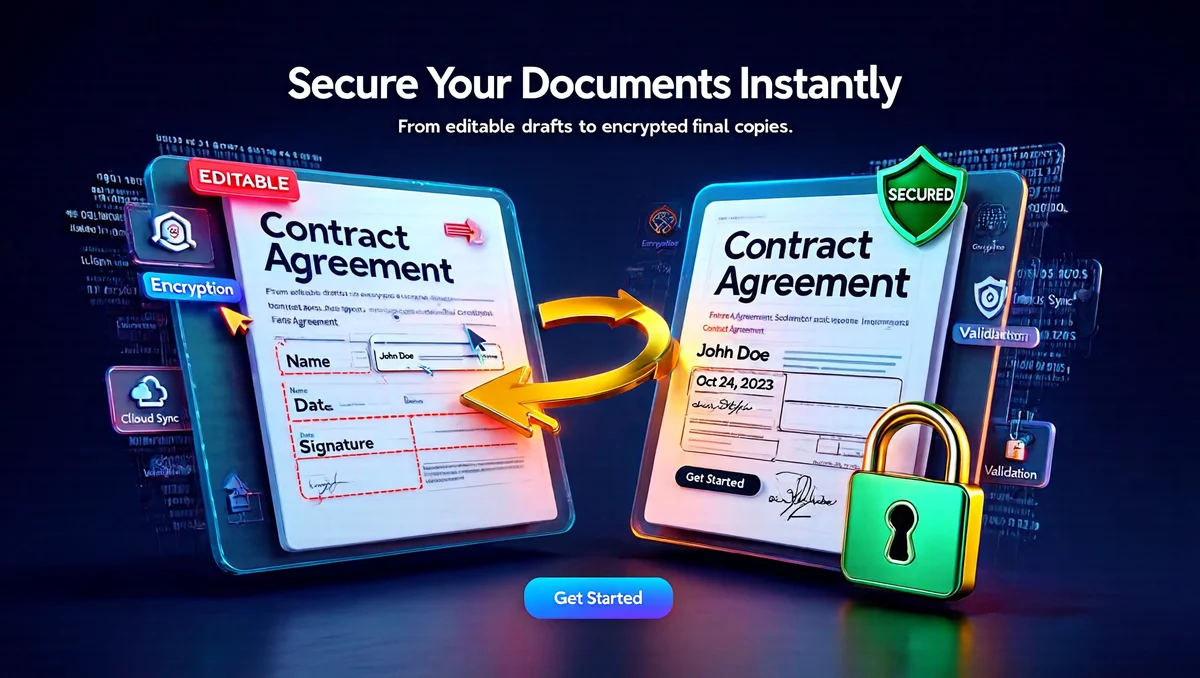
Flattening a PDF is the process of taking those interactive form fields and permanently merging them into the base content layer. The result? A clean, static, read-only PDF where every form field value becomes permanent text — just like printing the form on paper.
🎯 In Simple Terms:
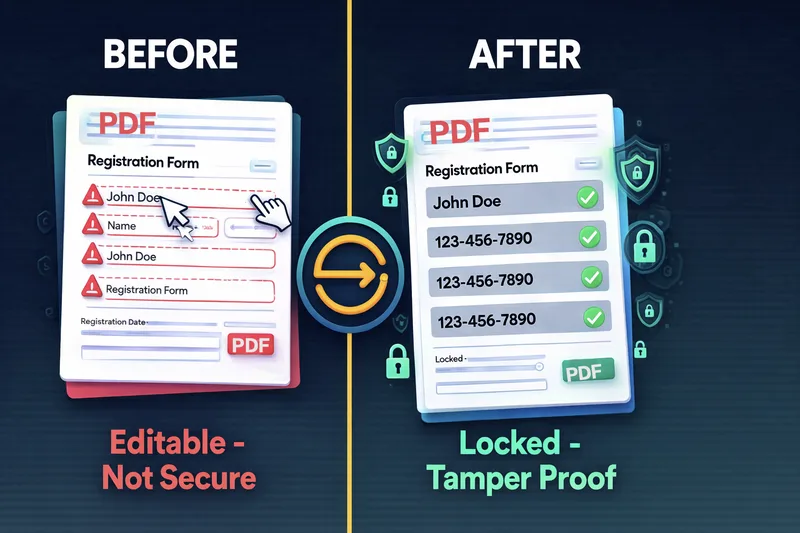
Form fields are editable. Anyone can change the data.
Everything is locked. Data is permanent and static.
Think of it this way: an interactive PDF is like a whiteboard — anyone can erase and rewrite. A flattened PDF is like a printed photograph of that whiteboard — what you see is permanent.
2. Why Should You Flatten PDF Forms? (5 Critical Reasons)
You might be wondering, "Why bother flattening? Can't I just send the PDF as is?" Here's why that's a bad idea — and why so many professionals flatten their PDFs before sharing them.
🔒 Reason 1: Prevent Document Tampering
This is the #1 reason people flatten PDFs. When you send a fillable invoice, contract, or application, the recipient can change the values. Imagine sending an invoice for $5,000 and the recipient editing it to $500 before payment. Flattening makes this impossible.
🖨️ Reason 2: Guarantee Print Accuracy
Interactive form fields don't always print correctly across different printers and PDF viewers. Some printers skip form field values entirely, leaving blank spots. Flattening ensures what you see on screen is exactly what gets printed.
📱 Reason 3: Universal Compatibility
Not every PDF reader supports interactive forms. Basic viewers on phones, tablets, or web browsers may display fillable PDFs incorrectly — missing text, misaligned fields, or blank areas. Flattened PDFs look consistent everywhere because there's nothing to "interpret."
💾 Reason 4: Often a Smaller File
The AcroForm dictionary (the hidden layer storing form field data) adds some overhead to your PDF. Removing it through flattening can reduce file size somewhat — how much depends on how many fields the form had and how much metadata was attached. Don't expect a dramatic reduction on a form with just a few fields.
📂 Reason 5: Clean Archival & Compliance
Government agencies, courts, HR departments, and legal firms often require flattened PDFs for official submissions. Some e-filing systems have trouble processing documents with active, unflattened form fields or signature layers, and may reject the submission outright. Flattening reduces this risk by removing the interactive layer entirely.
3. How PDF Flattening Works (The Technical Side)
You don't need to be a developer to understand this. But knowing what happens "under the hood" helps you choose the right tool and avoid quality loss.
📐 The Structure of an Interactive PDF
Every fillable PDF has a hidden data structure called the AcroForm dictionary. This is a separate layer within the PDF file that stores all form field information: positions, values, fonts, colors, and field types.
Layer 2: [Annotations Layer] ← Comments, highlights, stamps
Layer 1: [Content Stream] ← Base text, images, vectors (STATIC)
Layer 0: [Metadata] ← File info, creation date, author
When your PDF reader opens a fillable form, it reads the AcroForm dictionary and renders clickable boxes on top of the page content. That's why you can type into fields — they're floating above the actual page.

⚙️ Two Approaches to Flattening
Not all flattening tools work the same way. There are two fundamentally different methods, and the difference matters enormously.
| Feature | ❌ Rasterization (Bad) | ✅ Vector Merge (Good) |
|---|---|---|
| How It Works | Converts entire page to a flat image (JPG/PNG) | Writes field text directly into the content stream |
| Text Quality | Blurry, pixelated at zoom | Crystal clear at any zoom |
| Searchable Text | No — text becomes image pixels | Yes — text remains selectable |
| Copy/Paste | Impossible | Fully functional |
| File Size Impact | 2x–10x larger | Smaller or same |
| Font Preservation | Fonts lost | Original fonts intact |
| Print Quality | Low-resolution output | Professional-grade output |
| Used By | Basic "Print to PDF" methods | PDFTeq's browser-based flatten tool |
🔬 The Flattening Process (Vector Merge)
Here's what happens when PDFTeq flattens your form:
- Scan AcroForm Dictionary — The engine locates all form fields and their properties (position, value, font, size, color).
- Extract Field Values — Every piece of user-entered data is read along with its formatting metadata.
- Write to Content Stream — The field text is drawn directly onto the PDF's main content layer at the exact coordinates, with the exact font and styling.
- Delete AcroForm Layer — The form field dictionary is removed. No PDF reader can detect or display interactive fields anymore.
- Output Static PDF — The result is a clean, read-only document with all data permanently visible and locked.
4. How to Flatten PDF Forms Online Free (Step-by-Step)
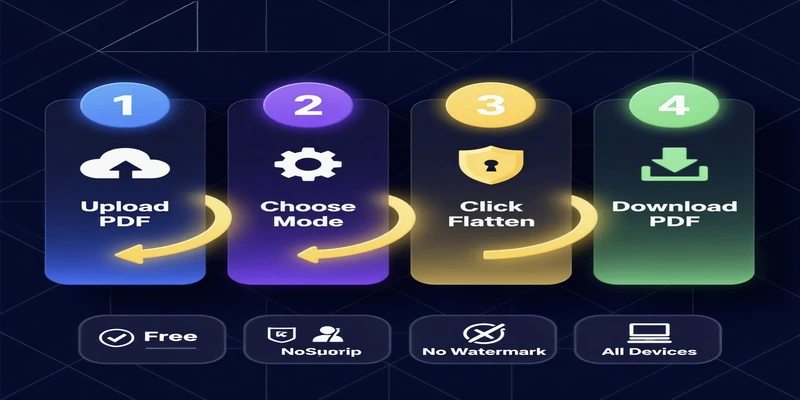
Ready to flatten your PDF? Here's how to do it with PDFTeq in under 60 seconds. No downloads. No signups. No watermarks.
Step 1: Upload Your PDF
Go to PDFTeq Flatten PDF Tool. Drag and drop your fillable PDF form into the upload area, or click to browse your device.
Step 2: Review the Info Notice
PDFTeq automatically detects the PDF's interactive form fields and shows a notice explaining what will happen. There's nothing to configure — the tool flattens all AcroForm fields (text boxes, checkboxes, dropdowns, radio buttons, signature fields) in one pass. Non-form annotations like sticky notes or comments are not affected.
Step 3: Click "Lock & Flatten PDF"
Hit the button. PDFTeq processes your file entirely in your browser using vector merge — writing field values directly into the page content. Your file never leaves your device — zero server uploads.
Step 4: Download Your Flattened PDF
Your secure, static PDF is ready instantly. Click "Download" to save it. That's it — done in under 60 seconds.
No signup • No watermark • 100% browser-based • Privacy safe
5. Why Choose PDFTeq for Flattening PDF Forms?
There are dozens of tools out there. Here's what makes PDFTeq different — and better.
✅ Vector Merge Technology
No rasterization. Text stays crisp, searchable, and copy-able. Fonts preserved perfectly.
🔒 100% Browser-Based Processing
Your files never leave your device. Zero server uploads. Complete privacy for sensitive documents.
💰 Completely Free — No Catches
No signup required. No watermarks. No hidden paywalls or "upgrade to download" tricks.
🧩 Handles Standard AcroForms Reliably
Text fields, checkboxes, radio buttons, dropdowns, and signature fields — flattened cleanly, without guesswork.
📱 Works on Every Device
Windows, Mac, Linux, iPhone, Android, Chromebook — if it has a browser, it works. No software to install.
⚡ Instant Results
Most PDFs flatten in a few seconds. No waiting, no queues, no processing delays.
6. Flatten PDF Tools Compared: PDFTeq vs Competitors
How does PDFTeq stack up against other popular flatten PDF tools? Let's compare the features that matter.
| Feature | PDFTeq | Smallpdf | Sejda | Adobe Acrobat | PDFgear |
|---|---|---|---|---|---|
| Price | Free | Free / ~$12/mo | Free (limited) / ~$7.50/wk | ~$22.99/mo | Free |
| Signup Required | ❌ No | ✅ Yes (for full) | ❌ No | ✅ Yes | ❌ No |
| Vector Merge | ✅ Yes | ⚠️ Varies | ⚠️ Varies | ✅ Yes | ⚠️ Varies |
| Browser-Only Processing | ✅ Yes | ❌ Cloud | ❌ Cloud | ❌ Desktop | ✅ Yes |
| Batch Processing | ⚠️ One file at a time | ❌ Paid only | ✅ Yes | ✅ Yes | ✅ Yes |
| Watermarks | ❌ Never | ✅ On free tier | ❌ No | ❌ No | ❌ No |
| File Size Limit | 50MB | ~100MB | ~50MB / 200 pages | None | None |
* Based on publicly available feature information and tool documentation, April 2026. Pricing and limits may change — verify directly with each provider before relying on this table.
Bottom Line: For standard AcroForm flattening, PDFTeq covers the core use case Adobe Acrobat offers — free, with no signup, and with the added privacy of browser-only processing. For batch processing, annotation flattening, or complex XFA forms, desktop software still has an edge.
📚 More Free PDF Tools You'll Love
7. Real-World Use Cases: When to Flatten PDF Forms
Flattening isn't just a technical exercise. Here are the real scenarios where it matters most.
⚖️ Legal & Court Filings
Courts and e-filing systems can reject unflattened PDFs, particularly when digital signature layers or unflattened fields interfere with how the document renders in the court's system. Flattening merges these layers into the page content, reducing the risk of a rejected filing.
💼 Business Invoices & Contracts
Before sending invoices, purchase orders, or signed contracts to clients or vendors, always flatten them. This prevents anyone from altering amounts, dates, terms, or signatures after the fact.
🏥 Medical & Insurance Forms
Patient intake forms, insurance claims, and similar documents contain sensitive personal information. Flattening ensures the data can't be modified while maintaining readability on any device.
🎓 Education & HR
Application forms, enrollment documents, grading sheets, and employee onboarding paperwork should all be flattened after completion. This creates tamper-proof records for compliance and auditing.
🏗️ Architecture & Engineering (Bluebeam Users)
Construction professionals frequently flatten PDF markups, punch lists, and plan annotations before final submittal. Tools like Bluebeam have built-in flatten features that also cover annotations — for standard AcroForm fields, PDFTeq offers a free browser-based alternative with no software install required.
🖨️ Print-Ready Documents
It's generally recommended to flatten your PDF before printing. Flattening helps ensure the document prints as you see it on screen, eliminating the risk of missing fields, misaligned annotations, or layers that render differently on paper.

8. How to Flatten PDF in Adobe Acrobat, Foxit, Bluebeam & Preview
If you're committed to a specific desktop software, here's how to flatten in the most popular PDF editors. For standard fillable forms, PDFTeq does the same core job for free, online, with zero software needed.
📘 Adobe Acrobat Pro DC
There are a few different ways to flatten in Acrobat. One is to use the "Save as Optimized PDF" function (File > Save as Other > Optimized PDF), then turn off all optimizations except "Flatten Form Fields" in the "Discard Objects" category.
Alternative method: Open the PDF in Adobe Acrobat Reader, Chrome, or Edge. Select "Print", then choose "Adobe PDF", "Microsoft Print to PDF" or "Save as PDF" as the printer. This creates a new PDF with a flattened appearance and interactive elements removed.
⚠️ Note: Adobe Acrobat Pro is a paid subscription (~$22.99/month at time of writing — verify current pricing). The Print to PDF method works in the free Reader but uses rasterization, which may reduce quality.
📗 Foxit PDF Editor
Flatten Pages in Foxit transforms annotations and form fields from your PDF into objects on the page. This makes comments and form fields permanent so document recipients cannot change them.
Navigate to View → Page Display → Flatten Pages in Foxit PDF Editor.
📙 Bluebeam Revu
In Bluebeam, go to Document → Flatten. Select whether to flatten markups, form fields, or both. Bluebeam is popular in construction and engineering and is a paid product.
📕 Preview (Mac)
Mac's built-in Preview doesn't have a direct "flatten" button. The workaround: Open the PDF in Preview → File → Print → "Save as PDF." This creates a new flattened copy, but be aware — it uses a rasterization approach, which may affect text quality.
9. Flatten PDF vs Compress PDF: What's the Difference?
This is one of the most common questions we get. People confuse flattening with compressing, but they're different processes with different goals.
| Aspect | 🔒 Flatten PDF | 📦 Compress PDF |
|---|---|---|
| Purpose | Remove interactivity, make read-only | Reduce file size |
| What Changes | Form fields merged into content | Images downscaled, metadata stripped |
| Editability After | Form fields no longer editable | Everything still editable |
| File Size | Modest reduction, varies by form | Significant reduction, especially with images |
| Use Together? | YES — Flatten first, then compress for the best results. | |
While flattening and compressing a PDF may sound similar, they are two different processes. Flattening merges a document's form fields into a single, uneditable layer, while compressing optimizes elements to make the file size smaller. Images may be downscaled and non-crucial metadata removed during compression.
Suggested Workflow: Fill out form → Sign → Flatten with PDFTeq → Compress with PDFTeq → Send.
10. Risks & Limitations of Flattening PDFs
Flattening is useful, but it's not without caveats. Here's what to be aware of before you hit that button.
- ⚠️ Irreversible Process: Once a PDF is flattened, form fields merge into a single, uneditable layer. Reversing the process to restore the original structure generally isn't possible. Keep a backup of the original PDF before flattening.
- ⚠️ Sign BEFORE Flattening: Always apply digital signatures before flattening. If you flatten first, the signature field is destroyed and cannot be signed.
- ⚠️ Accessibility Concerns: Flattened PDFs may lose some screen reader compatibility. If accessibility compliance (Section 508, WCAG) is critical, consider keeping an accessible version alongside the flattened one.
- ⚠️ XFA Forms: Complex XFA-based forms (created with Adobe LiveCycle) are not supported by PDFTeq's flatten tool — only standard AcroForms are. Use Adobe Acrobat for XFA forms.
- ⚠️ Non-Form Annotations Aren't Touched: PDFTeq's tool flattens AcroForm fields only. Sticky notes, comment bubbles, and stamps are left as-is — use desktop software if you need those flattened too.
- ⚠️ Don't Flatten Templates: If you still need to reuse a form template for future submissions, keep the original editable version safe. Only flatten copies.
11. Pro Tips & Expert Insights
A few best practices worth following when flattening forms:
💡 Tip 1: The "Two Copy" Rule
Always keep two copies: form_editable_v1.pdf (your working copy) and form_flattened_final.pdf (the distributed copy). This saves you when you need to make corrections weeks later.
💡 Tip 2: Flatten as the LAST Step
Your workflow should be: Fill out → Review → Sign → Flatten → Compress → Send. Flattening should always be the final processing step before distribution, so you don't lock in mistakes.
💡 Tip 3: Test Before Sending
After flattening, open the PDF in at least two different viewers (e.g., a browser and Adobe Reader) and do a test print. Verify all field values are visible, text is clear, and formatting is intact.
💡 Tip 4: Check the File Size Before and After
Compare the file size before and after flattening. A large increase can indicate something went wrong in the process (rare, but worth a sanity check) rather than the expected small change from removing the AcroForm dictionary.
💡 Tip 5: Naming Convention for Versions
Use clear file naming: Invoice_2026_March_EDITABLE.pdf vs Invoice_2026_March_FINAL.pdf. This prevents accidentally sending the wrong version and keeps your file system organized.
💡 Tip 6: Verify Flattening Was Successful
A quick way to check: try clicking into what used to be a form field. If you can still type into it or interact with it, the PDF was not flattened successfully. If in doubt, try flattening again.
12. Frequently Asked Questions (People Also Ask)
More Free PDF Tools from PDFTeq
PDFTeq offers a suite of browser-based PDF tools. Here are the ones our users reach for most:
🚀 Ready to Flatten Your PDF Forms?
Skip the paid software and the privacy worry. PDFTeq flattens your PDF form fields in seconds — free, secure, and right in your browser.
✅ No signup • ✅ No watermark • ✅ 100% browser-based