Edit PDF Metadata: Complete 2026 Guide
Master the hidden properties inside your PDFs. Learn how to edit Title, Author, Keywords, and Subject for better SEO rankings, enhanced privacy, and professional branding. This comprehensive guide covers everything from basics to advanced techniques used by SEO professionals and document management specialists worldwide.
📑 Quick Navigation
🔍 What is PDF Metadata and Why Does It Matter?
PDF metadata is hidden information stored inside your PDF file—separate from the visible content. Think of it as the document's DNA: it contains properties like Title, Author, Keywords, Subject, Creator software, and creation dates. Every PDF file contains this metadata, whether you added it intentionally or not. Understanding and optimizing this metadata has become increasingly important in today's digital landscape where search visibility and document management directly impact business success.
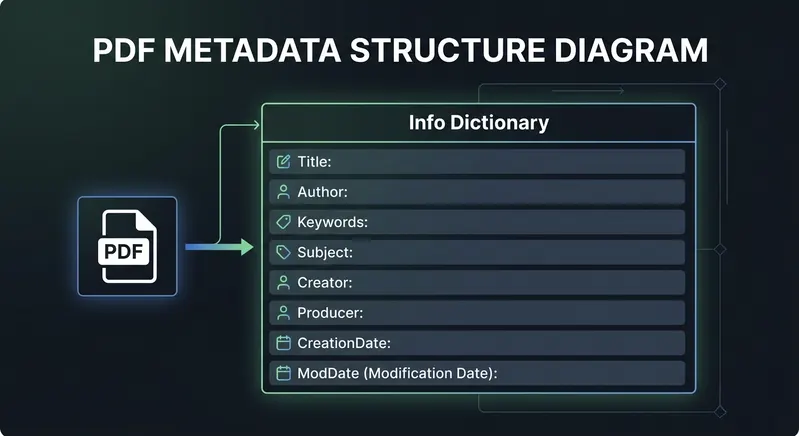
When you save a PDF from Microsoft Word, you'll see metadata like "Microsoft Word - Document1" automatically embedded. When you upload a photo as a PDF, it includes EXIF data. When you publish research, it includes author and institutional information. All of this metadata is indexed by Google and visible to anyone with the right tools. This is why controlling your PDF metadata has become a critical component of professional document management and SEO strategy. Organizations that manage their PDF metadata effectively see improvements in document discoverability, brand consistency, and information security.
✅ 5 Critical Reasons to Edit PDF Metadata
1. Search Engine Optimization
Google indexes PDF metadata in search results with the same importance as HTML meta tags on web pages. The Title metadata becomes your clickable link text in search results, directly influencing click-through rates. Keywords help establish topic relevance and semantic understanding of your content. Subject metadata serves a similar function to meta-descriptions. Optimizing these fields directly impacts your ranking position and organic click-through rate (CTR), which are critical metrics for SEO success. Studies show that properly optimized PDF metadata can increase CTR by up to 35% compared to auto-generated or missing metadata.
2. Privacy & Data Protection
PDFs created from Microsoft Word, Excel, or PowerPoint often contain sensitive data that isn't visible to casual readers: author names, department information, company names, revision history, device computer names, and more. This information can expose confidential business practices, competitive strategies, or personal information. Before sharing documents externally with clients, partners, or the public, removing this metadata is essential to protect your privacy and organizational security. Data breaches often begin with unintentional metadata exposure in seemingly innocent shared documents.
3. Professional Branding
Remove auto-generated titles like "Microsoft Word - Document1" and replace with professional, branded titles that reflect your organization's voice and standards. Your documents appear intentional, polished, and professionally managed. Consistent metadata across documents strengthens your brand image and communicates attention to detail. When search engines display your PDF in results with a professional, keyword-optimized title versus a generic auto-generated one, users are more likely to click, and your brand perception improves significantly.
4. Document Organization
Add consistent metadata across document collections to improve internal document management and searchability. Keywords help categorize and tag documents, making them easier to find within your organization's content management systems. Subjects improve searchability within your internal library, reducing time spent searching for information. Author information clarifies ownership and responsibility for different documents. Proper metadata organization also supports compliance requirements and audit trails for regulated industries like healthcare, finance, and legal services.
5. Compliance & Standards
Some industries require proper metadata for compliance with regulations like GDPR (General Data Protection Regulation), HIPAA (for healthcare), and various archival standards. Proper metadata ensures documents meet regulatory requirements, can be archived correctly for long-term preservation, and can be quickly retrieved for audits or compliance verification. Organizations in regulated industries must implement metadata standards as part of their records management and governance policies. Failure to maintain proper metadata can result in compliance violations and regulatory penalties.
📋 Understanding PDF Metadata Fields
PDFs contain a structure called the Info Dictionary that stores document properties. Here are the most important fields you can edit and their impact on your SEO and document management:
| Field Name | What It Does | SEO Impact | Example Value |
|---|---|---|---|
| /Title | Appears in browser tabs and becomes clickable link text in Google search results | Critical (90%) | "Q4 2025 Financial Report" |
| /Author | Creator/ownership of the document; establishes authority and expertise | Medium (20%) | "John Doe, Finance Department" |
| /Keywords | Comma-separated search terms; helps Google understand topic relevance | Medium (40%) | "financial, quarterly, Q4, revenue, performance" |
| /Subject | Document topic/summary (functions like HTML meta-description) | Medium (30%) | "Company financial results for Q4 2025" |
| /Creator | Software used to create the PDF originally | Low (5%) | "Microsoft Word 16.0" |
| /Producer | Software used to modify/produce the PDF | Low (5%) | "PDFTeq Editor" |
🛠️ How to Edit PDF Metadata: Step-by-Step
The easiest way to edit PDF metadata is using a web-based tool that processes files locally in your browser. Here's the complete step-by-step process used by thousands of professionals daily:
Step 1: Upload Your PDF
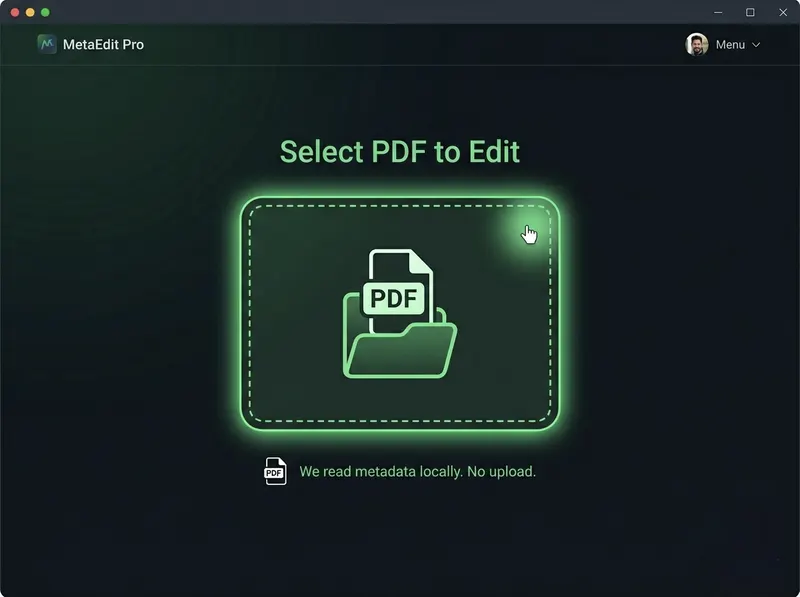
Open PDFTeq Metadata Editor and select your PDF file. You can drag and drop your file directly or click to browse your computer. Your file is processed directly in your browser—it never uploads to any server. This means your documents remain completely private and secure throughout the editing process.
Step 2: View Current Metadata
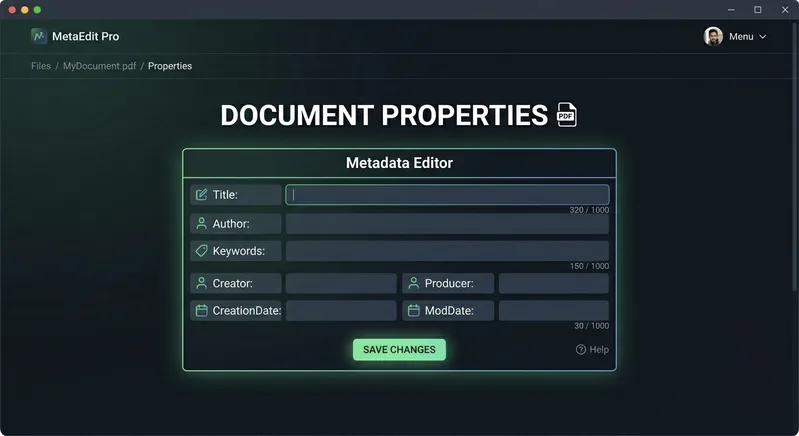
The editor automatically reads all metadata from your PDF and displays it in editable text fields. You'll see: Title, Author, Keywords, Subject, Creator, and Producer. This is your chance to see exactly what information is stored in your document. Many users are surprised to discover what metadata their PDFs contain, especially those created from Word documents or exported from other software.
Step 3: Edit the Fields You Want to Change
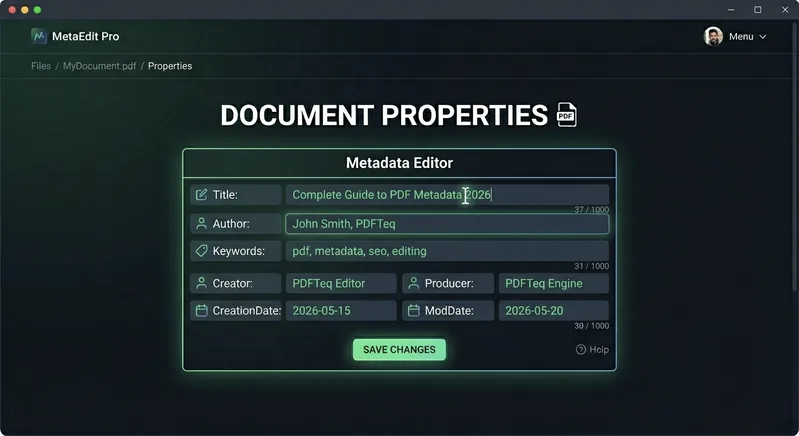
Modify any metadata fields. The most important fields for SEO and document management are:
- Title: Use a descriptive, keyword-rich title (50-70 characters) that accurately reflects the document content. Include your primary keyword naturally.
- Keywords: Add 5-10 relevant search terms, comma-separated, that users would search for to find this document.
- Subject: Write a one-sentence summary of the document that includes secondary keywords and provides context.
- Author: Your name, department, or organization name to establish authority and ownership.
Step 4: Save and Download
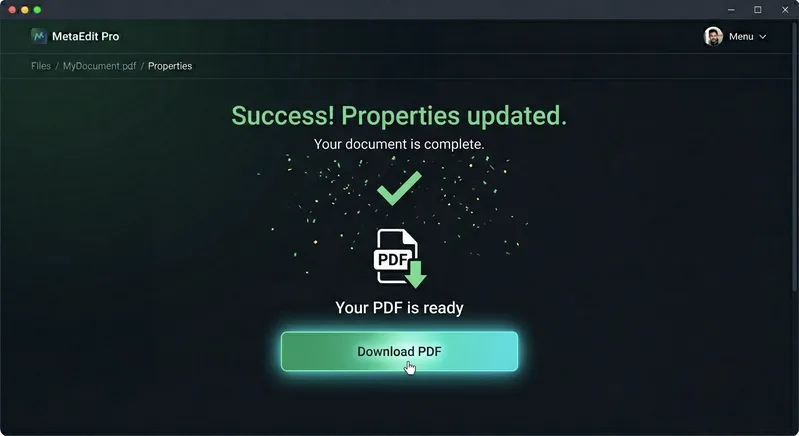
Click "Save New Metadata" button. The editor processes your PDF locally in your browser and creates a modified version with your new metadata. When the process completes, click "Download PDF" to save your file with the updated metadata to your computer. The entire process typically takes just a few seconds, and your original file remains unchanged on your device.
🔄 3 Methods to Edit PDF Metadata Compared
You have three main options for editing PDF metadata. Here's a comprehensive comparison to help you choose the best method for your needs:
| Method | Ease of Use | Cost | Privacy | Best For |
|---|---|---|---|---|
| Online Tool (PDFTeq) | ⭐⭐⭐⭐⭐ Very Easy | Free | ✓ Excellent (client-side) | Most users, quick edits, privacy-conscious |
| Desktop Software (Adobe) | ⭐⭐⭐⭐ Moderate | $180+/year | ✓ Good | Professionals doing complex edits, batch processing |
| Command Line (Linux/Mac) | ⭐⭐ Difficult | Free | ✓ Excellent | Technical users, automation, batch processing |
🛡️ Concerned About Privacy? Remove Metadata Instead
This guide focuses on editing and optimizing metadata for SEO and branding. If you're concerned about privacy and want to remove sensitive data from PDFs before sharing externally, read our complete guide to removing PDF metadata. That guide explains what hidden data PDFs contain, real-world privacy risks, and step-by-step instructions to remove all metadata completely.
📊 How PDF Metadata Affects SEO Rankings
Search engines treat PDFs like regular web pages for indexing and ranking purposes. Understanding how metadata impacts your search visibility is critical for any organization publishing PDFs online. Here's how metadata directly influences your search engine rankings:
Google's PDF Indexing Process
- Discovery: Google's crawler finds PDF links on websites and adds them to the crawl queue.
- Metadata Extraction: Googlebot reads the Info Dictionary (metadata) while processing the PDF, extracting Title, Keywords, Subject, and Author fields.
- Content Extraction: Google extracts visible text from the PDF (performs OCR on scanned documents to make them searchable).
- Indexing & Ranking: PDF Title metadata becomes the search result link text. Keywords help establish topic relevance. Subject appears in snippets. Author information helps establish E-E-A-T.
- /Title (90% impact): Directly becomes your search result link text. The most visible element that influences CTR.
- /Keywords (40% impact): Helps Google understand topic relevance. Less important than visible content but still significant.
- /Subject (30% impact): Similar to meta-description. May appear in search results or preview text.
- /Author (20% impact): Establishes E-E-A-T (expertise, authority, trustworthiness). Important for topical authority.
- /Creator (5% impact): Doesn't directly impact SEO but affects trust perception and document credibility.
Real-World Example: SEO Improvement
❌ BEFORE (Bad Metadata):
- Title: "Microsoft Word - Document1"
- Keywords: (empty)
- Author: "User"
✓ AFTER (Optimized Metadata):
- Title: "Complete Guide to Machine Learning in Healthcare 2026"
- Keywords: "machine learning, healthcare, AI, medical informatics, clinical decision support"
- Author: "Dr. Sarah Johnson, MIT Computer Science"
Expected Impact: The optimized version would rank higher for relevant searches, get better click-through rates in search results (20-35% improvement), and establish author authority through proper attribution. Studies show optimized metadata increases PDF CTR by 20-35% compared to auto-generated metadata.
🏆 Metadata Best Practices & Standards
✓ DO: Follow These Best Practices
- Use descriptive, keyword-rich titles: Include your primary keyword naturally (50-70 characters) at the beginning of the title.
- Add relevant keywords: 5-10 keywords, comma-separated, directly related to document content and user search intent.
- Include author/organization: Establish authority and credibility with proper attribution and credentials.
- Keep subject concise: One-sentence summary that includes secondary keywords and provides clear context.
- Update modification dates: Fresh documents rank better than stale ones; indicate when content was last updated.
- Remove sensitive information: Clean metadata before sharing external documents to protect organizational security.
- Use consistent formatting: Apply same metadata structure across document collection for brand consistency.
- Test before publishing: Use metadata checker tool to verify changes before deploying documents.
- Document metadata standards: Create and maintain metadata guidelines for your organization.
✗ DON'T: Avoid These Common Mistakes
- Don't leave auto-generated titles: "Microsoft Word - Document1" looks unprofessional and hurts SEO significantly.
- Don't include confidential info: Company secrets, employee data, and financial details get exposed to search engines.
- Don't stuff keywords: Excessive keyword repetition looks spammy and may trigger search engine penalties.
- Don't use outdated author info: Wrong names or departments damage credibility and confuse users.
- Don't ignore modification dates: Stale documents signal outdated information and get ranked lower.
- Don't share without cleaning: Revision history and personal data leak unintentionally to recipients.
- Don't use special characters excessively: Some old PDF readers can't display non-ASCII characters properly.
- Don't assume metadata doesn't matter: It directly impacts SEO, privacy, and document professionalism significantly.
⚠️ Sharing Documents Externally? Remove Metadata First!
Before sharing PDFs with clients, partners, or the public, it's critical to remove sensitive metadata. While this guide focuses on optimizing metadata for your website, our metadata removal guide explains what hidden data your PDFs contain and provides step-by-step instructions to completely remove all metadata for maximum privacy protection.
❓ Frequently Asked Questions - 10 Essential Questions Answered
Click on any question to reveal the detailed answer. These are the questions we get asked most frequently by PDFTeq users.
Document content is the visible text, images, and layout you see when opening a PDF. This is what users read and interact with. Metadata is hidden behind-the-scenes information about the document—like author, creation date, keywords, title, subject, etc.
Think of a book: the content is the words on the pages. The metadata is the title on the cover, the author name, the publication date on the copyright page, the ISBN number, and the publisher information.
Key difference: You can change metadata without touching the visible content. If you edit the Title field, the PDF looks exactly the same when you open it, but the metadata has changed. The document remains unchanged visually, but becomes more discoverable and professionally presented.
Yes, metadata is invisible to someone just reading the PDF in a PDF reader. If you open the PDF normally, you won't see the metadata displayed on screen.
However, metadata CAN be viewed by:
- Right-clicking the PDF file → Properties → Details tab (Windows)
- Right-clicking the PDF file → Get Info → More Info (Mac)
- Using online metadata checker tools
- Opening the PDF in certain PDF readers that display properties panels
- Using command-line tools to examine the file structure
- Search engines like Google (index metadata in their databases)
- Document archival and management systems
Bottom line: Metadata is hidden from casual readers but visible to anyone with basic technical knowledge or intent. Always remove sensitive data before sharing PDFs externally. This is critical for protecting organizational secrets and personal information.
Yes, absolutely. Google indexes PDF metadata and uses it in search results. Here's the process:
When Googlebot finds a PDF link:
- It downloads the PDF and reads the metadata (Title, Keywords, Subject, Author)
- It extracts the visible text content (performs OCR on scanned documents)
- It combines both signals to understand the document's topic and relevance
- The Title metadata becomes the clickable link text in search results
- Keywords influence topic relevance scoring
Impact on rankings: Optimized metadata improves click-through rate (better title = more clicks), helps Google understand topic relevance (better keywords), and establishes document authority (author information). The visible PDF content is still the primary ranking factor, but metadata is an important enhancer. You can't rank on metadata alone if the content is weak, but good metadata amplifies good content.
Filename: This is how you save the file on your computer. Example: "report.pdf" or "2025-Q4-financial.pdf". The filename appears in folder views and file explorers. Users see this when downloading from a website.
Title metadata: This is hidden information stored INSIDE the PDF file. Example: "Q4 2025 Financial Performance Report". The Title metadata becomes the clickable link text in Google search results.
Example in Google Search: You might have a file named "doc_v3_final.pdf" on your server, but the search result link shows "Q4 2025 Financial Report" (the Title metadata). Users see the metadata title in search results, not the filename.
Best practice: Make BOTH the filename and Title metadata meaningful and descriptive. Use keywords in both. For example: filename "2025-Q4-financial-report.pdf" with Title metadata "Q4 2025 Financial Performance Report - Company Analysis".
Yes, PDFTeq metadata editor is completely free. No hidden costs, no premium version, no account required, no watermarks on output.
You can edit:
- ✓ Unlimited PDFs (no file limits)
- ✓ All metadata fields (Title, Author, Keywords, Subject, Creator, Producer)
- ✓ No file size limitations
- ✓ No account creation required
- ✓ No registration or login
- ✓ No watermarks on the output PDF
- ✓ Use from any device, any time
The editor works entirely in your browser (client-side), so your files never leave your device. It's genuinely free with no limitations or hidden charges.
Yes, both can edit metadata, but they have significant drawbacks:
Microsoft Word:
- ✓ Can edit basic metadata when saving as PDF
- ✗ Limited metadata fields available
- ✗ Adds document to recent files (privacy concern)
- ✗ Requires Word software installation ($200+)
- ✗ Can only edit during PDF export, not afterwards
Adobe Acrobat Pro:
- ✓ Can edit all metadata fields comprehensively
- ✓ Professional features for complex edits
- ✗ Expensive ($180+/year subscription)
- ✗ Overkill for simple metadata changes
- ✗ Requires software installation and updates
PDFTeq:
- ✓ Completely free (no cost)
- ✓ Edit all metadata fields
- ✓ Works in any browser (no installation)
- ✓ Process files in your browser (maximum privacy)
- ✓ Works on Windows, Mac, Linux, Mobile devices
- ✓ Edit existing PDFs, not just during creation
Verdict: For most users, PDFTeq is the best choice: free, easy, private, and works everywhere.
No. Editing metadata does NOT change the document's content, layout, or visual appearance.
Metadata is stored separately from the visible content. When you edit the Title, Author, or Keywords fields:
- The PDF text stays exactly the same
- Images are not modified
- Formatting is preserved
- Layout remains unchanged
- Page numbers are the same
- Links remain functional
- File size changes minimally
The PDF looks and reads identically to someone viewing it. Only the hidden metadata behind-the-scenes has changed. This is why metadata editing is so useful—you can improve your document's searchability and professionalism without risking content corruption or layout issues.
Yes, PDFTeq works on all devices and all operating systems.
Supported Devices:
- ✓ Windows (10, 11, any version)
- ✓ Mac (Intel and Apple Silicon M1/M2)
- ✓ Linux (any distribution)
- ✓ iPhone (iOS 13+)
- ✓ Android phones and tablets
- ✓ Chromebooks and tablets
Supported Browsers:
- ✓ Chrome/Chromium (desktop and mobile)
- ✓ Firefox (desktop and mobile)
- ✓ Safari (Mac and iOS)
- ✓ Edge (Windows and cross-platform)
Since PDFTeq works in your browser (web-based), it works the same way everywhere. No software to install. Just visit PDFTeq, upload your PDF, and edit metadata. On mobile, the form is mobile-optimized with larger touch targets and responsive layout for easy editing on small screens.
PDF files can store metadata in two different ways:
Info Dictionary (Basic Metadata):
- Simpler structure with limited fields
- Stores: Title, Author, Subject, Keywords, Creator, Producer, Dates
- All PDF readers support Info Dictionary
- What most tools (including PDFTeq) edit
- Widely used and most compatible
XMP Metadata (Extended Metadata Platform):
- More complex, hierarchical structure
- Stores: Dublin Core fields, EXIF data, IPTC data, custom fields
- More powerful but fewer readers support it
- Used for photo metadata, design files, professional publishing
- Adobe Acrobat primarily manages XMP metadata
In practice: For SEO and basic document management, the Info Dictionary (Title, Author, Keywords) is sufficient and most important. XMP is useful for specialized workflows like photo libraries, professional design, or publishing workflows.
Here are several ways to verify your metadata changes:
Method 1: Using PDFTeq Again
- Upload your edited PDF back to PDFTeq
- Check that all fields show your new values
- Easiest method, no special tools needed
Method 2: Windows File Properties
- Right-click your PDF file
- Select "Properties"
- Click "Details" tab
- Scroll down to see Title, Author, Keywords, Subject
Method 3: Mac File Information
- Right-click your PDF file
- Select "Get Info"
- Scroll to "More Info" section
- View metadata fields
Method 4: Online Metadata Checker
- Upload PDF to online metadata checker
- View all metadata fields instantly
- Some tools show detailed structure
Easiest method: Use PDFTeq again to verify—it's the simplest and works everywhere. Re-upload your edited PDF to see that all changes were applied correctly.
Ready to Edit Your PDF Metadata?
Stop wasting time with complicated software. Start optimizing your PDFs right now with PDFTeq's free, easy-to-use metadata editor. No account needed, no file upload, works on any device. Improve your SEO, protect your privacy, and establish professional branding—all in minutes.
Open Metadata Editor