How to Extract PDF Pages Without Losing Quality (2026 Guide)
Learn how to select specific pages from a PDF, create a new document, and avoid unnecessary re-rendering or printing workflows.
Published: • Updated: • PDF Tools Guide
Quick Answer
To extract pages from a PDF, select the pages you want and create a new PDF containing those pages. PDFTeq's Extract PDF Pages tool performs this workflow directly in your browser.
PDF files are often much larger than the part of the document you actually need. A 50-page report might contain only four pages relevant to a particular project, client, class, or application.
Instead of keeping the complete document, you can extract the required pages into a separate PDF.
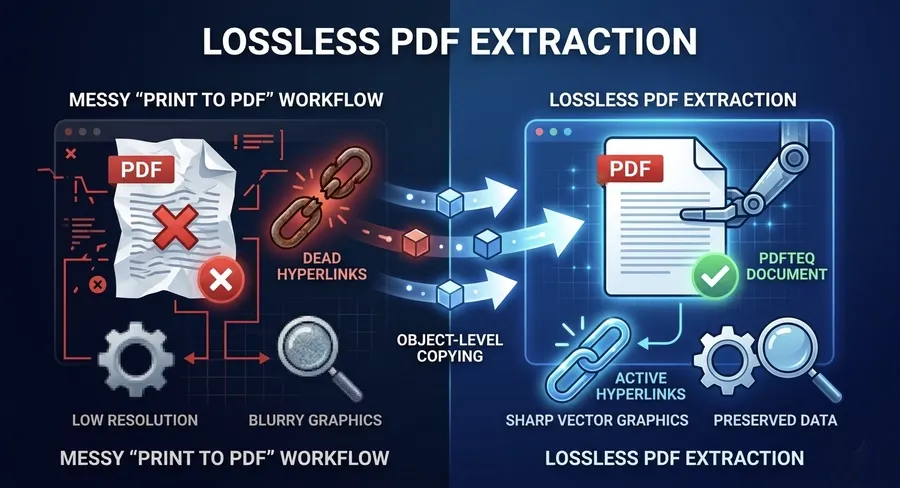
The important distinction is how the new PDF is created. Printing PDF pages to another PDF can involve rendering the pages again. A PDF page extraction workflow instead copies selected PDF pages into a new document.
What Does PDF Page Extraction Mean?
PDF page extraction means creating a new PDF containing only selected pages from an existing PDF.
For example, if your original document contains pages 1 through 50 and you need pages 12, 13, 14, and 15, extraction creates a separate PDF containing those selected pages.
The original PDF remains unchanged.
PDF Extraction vs. Print to PDF
These two workflows can produce very different results.
| Method | What Happens |
|---|---|
| PDF Page Extraction | Selected PDF pages are copied into a newly created PDF document. |
| Print to PDF | The document is rendered through a printing workflow and then saved as PDF. |
For document workflows where preserving the original PDF structure matters, direct page extraction is generally preferable to printing the pages again.
How PDFTeq Extracts Selected Pages
PDFTeq uses PDF.js for displaying page previews and pdf-lib for creating the new PDF.
When you select pages, the selected page indexes are passed to the PDF creation process. The selected pages are then copied into a new PDF document in the same order in which they were selected from the document.
Client-Side Processing
The extraction workflow runs in the browser. The selected PDF is loaded using JavaScript and the resulting PDF is generated locally in the browser.
This means the workflow does not require a server-side PDF processing API.
Does Extracting PDF Pages Reduce Quality?
Extracting PDF pages is different from taking screenshots of those pages.
PDFTeq does not convert the selected pages into screenshots before creating the new PDF. The extraction process uses PDF page copying through pdf-lib.
However, it would be technically inaccurate to claim that every possible PDF feature is guaranteed to be preserved. Complex annotations, document-level structures, certain metadata, forms, or advanced PDF features can behave differently depending on the source PDF and the PDF library being used.
For ordinary PDFs containing text, images, and vector content, page extraction is substantially different from rasterizing the document through a print or screenshot workflow.
Key Features
- Visual page selection — preview pages before extraction.
- Select all — quickly select the entire document.
- Select none — clear the current page selection.
- Individual page selection — choose only the pages you need.
- Client-side processing — PDF processing happens inside the browser.
- No watermark — PDFTeq does not intentionally add a watermark to the generated file.
- No account required — the tool can be opened and used without creating an account.
- Mobile-friendly workflow — select PDF files directly from a smartphone or tablet.
How to Extract PDF Pages Online
- Open the Extract PDF Pages tool. Go to PDFTeq Extract PDF Pages .
- Select your PDF. Choose the PDF file from your device.
- Wait for the page previews. The tool creates visual thumbnails of the PDF pages.
- Select the pages. Click the pages you want to include in the new PDF.
- Generate the PDF. Click Generate New PDF .
- Download the result. Download the newly created PDF to your device.
Common Use Cases
Students
Extract selected pages from lecture notes, textbooks, study material, or reference documents.
Business Documents
Create a smaller PDF containing only the pages relevant to a client, meeting, proposal, or report.
Legal Documents
Create a separate PDF containing selected pages from a larger document when a specific section needs to be shared or reviewed.
Forms and Applications
Extract the relevant pages from a long application document before submitting or sharing it.
Reports and Presentations
Create a smaller PDF containing selected sections from a large report.
Is the PDF Uploaded to PDFTeq?
The extraction workflow shown on this page is designed for client-side processing. The PDF is read in the browser using JavaScript and the resulting PDF is generated locally.
No remote PDF-processing API is required for this extraction operation.
Important Privacy Distinction
Client-side processing is different from saying that a website has no network requests at all. PDFTeq may still load website resources such as JavaScript libraries, CSS, analytics, advertising, or other page resources. The statement here is specifically about the PDF processing workflow.
Is There a PDF File Size Limit?
The current browser-based implementation does not impose a fixed server-side upload limit because the PDF is not sent to a server for extraction.
However, the practical limit depends on the available memory and processing capability of the user's device and browser.
Large PDFs with hundreds of pages or very large embedded images may require significantly more browser memory and processing time.
Can I Extract PDF Pages on a Phone?
Yes. Open the tool in a modern mobile browser and select the PDF from your device.
Because PDF page previews require browser memory, very large PDFs may perform better on a desktop or laptop.
What This Tool Does Not Currently Do
The current version is intentionally simple. It focuses on selecting pages and creating a new PDF.
- It does not provide a text box for page ranges.
- It does not provide drag-and-drop page rearrangement.
- It does not extract pages from multiple PDFs simultaneously.
- It does not perform OCR.
- It does not guarantee preservation of every advanced PDF feature.
If you need page rearrangement, use the Reorder PDF tool when available.
Related PDF Tools
- Merge PDF — combine multiple PDF documents.
- Split PDF — divide a PDF into separate documents.
- Reorder PDF — rearrange PDF pages.
- Delete PDF Pages — remove unwanted pages.
- Compress PDF — reduce PDF file size.
Frequently Asked Questions
PDF page extraction creates a new PDF containing only the pages you select from the original document.
No. The original PDF remains on your device unchanged. The tool creates a separate PDF containing the selected pages.
Yes. The Extract PDF Pages tool is available free of charge.
The extraction workflow runs in the browser. The selected PDF is processed locally using JavaScript rather than being sent to a server-side PDF processing API.
Yes. The tool displays page thumbnails and allows you to select individual pages before generating the new PDF.
Yes. Use the All button to select every page in the current PDF.
Scanned PDFs can generally be loaded and their pages can be selected for extraction. Whether an OCR text layer is retained depends on the structure of the source PDF and the PDF processing library.
Not for every possible PDF. Standard page content is copied through pdf-lib, but complex annotations, links, forms, and other advanced PDF structures may not always be preserved exactly.
There is no server upload limit for the client-side extraction workflow. Practical limits depend on your browser, device memory, PDF size, and number of pages.
Yes. The tool is designed to work in modern mobile browsers. Large PDFs may require more memory and can perform better on a computer.
People Also Ask
- How do I extract specific pages from a PDF?
- How do I extract one page from a PDF?
- Can I extract PDF pages without Adobe Acrobat?
- Can I extract PDF pages on my phone?
- Does PDF extraction change the original file?
- Is extracting PDF pages the same as printing to PDF?
Conclusion
Extracting PDF pages is useful when you need a smaller document containing only selected pages from a larger file.
The important advantage of direct PDF page extraction is that it avoids the unnecessary screenshot or print workflow that can rasterize document content.
PDFTeq's Extract PDF Pages tool provides a simple browser-based workflow: select your PDF, choose the pages you need, generate a new PDF, and download it.
Ready to Extract PDF Pages?
Select only the pages you need and create a new PDF.
Extract PDF Pages Free →
Technical guides covering practical browser-based PDF workflows and document processing.
Published: January 10, 2025 | Updated: August 16, 2026Share this guide: