 By Md.R K
|
Last Updated: April 06, 2026
|
15 min read
By Md.R K
|
Last Updated: April 06, 2026
|
15 min read
How to Merge PDF Files: Complete Guide to Combining Multiple Documents
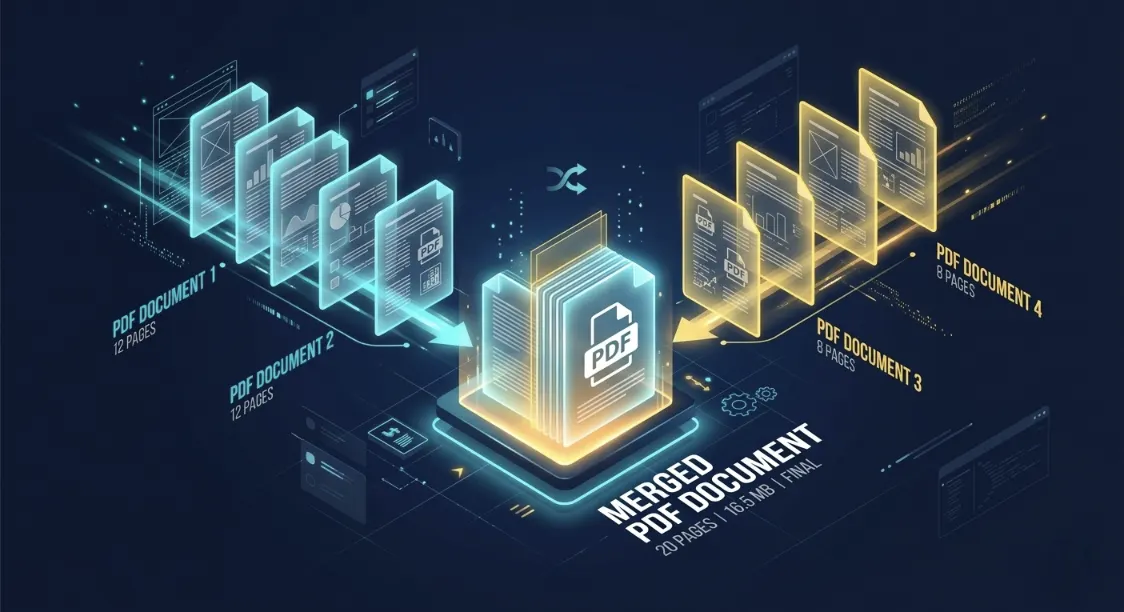
Master the art of PDF merging with step-by-step instructions, professional tools comparison, and advanced techniques. Whether you're a beginner or professional, this guide covers everything you need to know about combining PDFs effectively.
Ready to Merge PDF Files?
Skip the reading and combine your PDFs instantly using our free, secure, browser-based tool.
Launch Merge PDF Tool📑 Quick Navigation
Why You Need to Merge PDF Files
PDF merging has become essential for professionals, students, and businesses worldwide. There are countless reasons why combining multiple PDF files into a single document is necessary in today's digital workflow.
📊 Business & Corporate Use
- Invoices & Receipts: Combine monthly invoices into annual reports
- Contracts: Merge multiple contract pages into a single document
- Proposals: Combine cover pages, terms, and appendices
- Financial Reports: Merge quarterly statements into annual summaries
- Meeting Minutes: Combine multiple meeting PDFs chronologically
🎓 Educational & Academic
- Thesis & Dissertations: Combine individual chapters into final submission
- Research Papers: Merge multiple paper references into one document
- Study Materials: Combine lecture notes, assignments, and solutions
- Presentations: Merge slides with supplementary materials
👤 Personal Organization
- Travel Documents: Combine tickets, hotel confirmations, itineraries
- Medical Records: Merge doctor's notes, test results, prescriptions
- Home & Legal: Combine property deeds, contracts, warranties
- Insurance: Merge policy documents and claim forms
Step-by-Step Guide: 3 Ways to Merge PDFs
✨ Method 1: Using Our Free Online Merge Tool (Fastest)
The quickest way to merge PDFs is using an online tool. No installation, no account needed. Try our free PDF merge tool with these simple steps:
- Visit PDFTeq Merge Tool: Go to Merge PDF Tool
- Click "Select Files" or drag & drop your PDFs
- Upload from Computer: Select multiple PDFs in your desired order
- Arrange Order: Files merge in the order selected (or use our Reorder PDF tool to arrange pages)
- Click "Merge PDF" button
- Download Result: Get your merged PDF instantly
⭐ Advantages:
- ✓ No software installation required
- ✓ Works on Windows, Mac, Android, iOS
- ✓ Completely free with no watermarks
- ✓ No file size limits
- ✓ No account or registration needed
- ✓ Processed locally in browser — zero server uploads
⚠ Best For: Quick merging, occasional use, all devices
📁 Method 2: Using Google Drive (Free Alternative)
If you already use Google Drive, you can merge PDFs without third-party desktop tools:
- Upload PDFs: Drag PDFs into your Google Drive folder
- Right-click First PDF: Select "Open with" → "Google Docs"
- Insert Other PDFs: Click Insert → File Upload
- Add More Files: Repeat for each PDF you want to merge
- Download as PDF: File → Download → PDF Document
⭐ Advantages:
- ✓ Completely free (with Google account)
- ✓ Cloud-based access from anywhere
- ✓ Automatic backup and version history
⚠ Limitations:
- ✗ Slower than dedicated merge tools
- ✗ Layout and font formatting can shift
- ✗ Requires a Google account
💻 Method 3: Using Desktop Software (Professional)
For high-volume professional workflows, desktop software is another option:
- Download Software: Adobe Acrobat, Nitro Pro, or Sejda Desktop
- Open Application and select "Merge" or "Combine Files"
- Add PDF Files: Choose files from your storage
- Arrange Pages: Drag to adjust page sequence
- Save Result to your chosen directory
Comparing PDF Merge Tools: Online vs Desktop
| Tool | Price | Type | Privacy | Speed | Best For |
|---|---|---|---|---|---|
| PDFTeq Free Tool | Free | Online (Local) | 100% Client-side | ⚡⚡⚡⚡ | Quick, private everyday use |
| Adobe Acrobat Pro | ~$23.99/mo | Desktop | Local / Cloud | ⚡⚡⚡ | Enterprise workflows |
| Nitro Pro | Paid | Desktop | Local | ⚡⚡⚡⚡ | Corporate desktop users |
| Google Drive | Free | Cloud | Google servers | ⚡⚡ | Google Docs users |
Professional PDF Merging: Structural Integrity
PDF merging is not just stitching pages together. Professional merging preserves document structure, internal outlines, form fields, and metadata:
- ✓ Outlines and bookmarks remain intact
- ✓ Internal hyperlinks continue to function
- ✓ Page numbering updates seamlessly
- ✓ Annotations and highlights are retained
- ✓ Form fields remain intact
Expert Tips & Tricks for Perfect Merging
- Organize Files Beforehand: Number files chronologically (e.g.,
01_Intro.pdf,02_Report.pdf) to arrange quickly. - Merge First, Compress Later: Always merge at full resolution first, then use a compression tool if file size needs reducing.
- Verify the Output: Open the merged PDF and check random pages and hyperlinks before emailing or submitting.
💡 Post-Processing Tip: Need Pages as Images?
If you need individual pages from your newly merged PDF for a presentation or slide deck, you can convert them directly with our PDF to JPG tool without uploading files to any server.
Frequently Asked Questions (FAQ)
Related PDF Guides & Tools
Ready to Merge Your PDFs?
Start merging with our free, private PDF merge tool. No installation, no sign-up, no watermarks.
Open PDF Merge Tool Now →
Md.R K
Senior PDF Engineer & Document Automation Specialist
Md.R K leads the PDF processing engine at PDFteq with 9 years of experience in browser-based document automation, WebAssembly PDF rendering, and bulk-processing pipeline design.