 By Md.R K
|
Last Updated: April 06, 2026
|
15 min read
By Md.R K
|
Last Updated: April 06, 2026
|
15 min read
How to Merge PDF Files: Complete Guide to Combining Multiple Documents
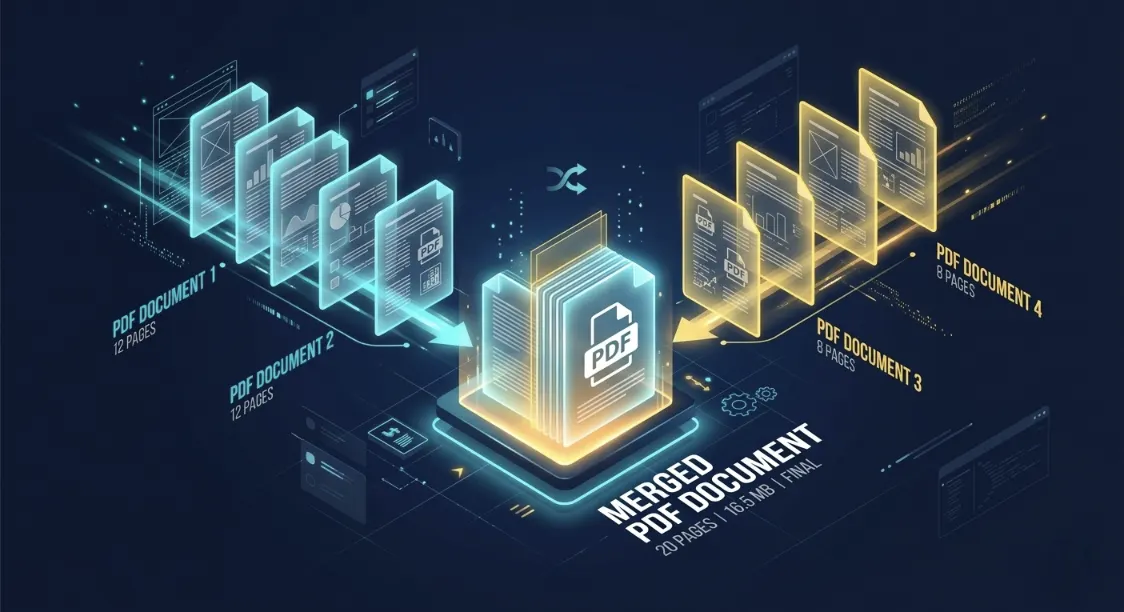
Master the art of PDF merging with step-by-step instructions, professional tools comparison, and advanced techniques. Whether you're a beginner or professional, this guide covers everything you need to know about combining PDFs effectively.
📑 Quick Navigation
Why You Need to Merge PDF Files
PDF merging has become essential for professionals, students, and businesses worldwide. There are countless reasons why combining multiple PDF files into a single document is necessary in today's digital workflow.
📊 Business & Corporate Use
- Invoices & Receipts: Combine monthly invoices into annual reports
- Contracts: Merge multiple contract pages into a single document
- Proposals: Combine cover pages, terms, and appendices
- Financial Reports: Merge quarterly statements into annual summaries
- Meeting Minutes: Combine multiple meeting PDFs chronologically
🎓 Educational & Academic
- Thesis & Dissertations: Combine individual chapters into final submission
- Research Papers: Merge multiple paper references into one document
- Study Materials: Combine lecture notes, assignments, and solutions
- Presentations: Merge slides with supplementary materials
👤 Personal Organization
- Travel Documents: Combine tickets, hotel confirmations, itineraries
- Medical Records: Merge doctor's notes, test results, prescriptions
- Home & Legal: Combine property deeds, contracts, warranties
- Insurance: Merge policy documents and claim forms
Step-by-Step Guide: 3 Ways to Merge PDFs
✨ Method 1: Using Our Free Online Merge Tool (Fastest)
The quickest way to merge PDFs is using an online tool. No installation, no account needed. Try our free PDF merge tool with these simple steps:
- Visit PDFTeq Merge Tool: Go to /tools/merge-pdf
- Click "Select Files" or drag & drop your PDFs
- Upload from Computer: Select multiple PDFs at once
- Arrange Order: Drag files to reorder if needed
- Click "Merge PDF" button
- Download Result: Get your merged PDF instantly
⭐ Advantages:
- ✓ No software installation required
- ✓ Works on Windows, Mac, Android, iOS
- ✓ Completely free with no watermarks
- ✓ No file size limits
- ✓ No account or registration needed
- ✓ Files deleted immediately after merging
⚠ Best For: Quick merging, occasional use, all devices
📁 Method 2: Using Google Drive (Free Alternative)
If you already use Google Drive, you can merge PDFs without any third-party tools:
- Upload PDFs: Drag PDFs into your Google Drive folder
- Right-click First PDF: Select "Open with" → "Google Docs"
- Insert Other PDFs: Click Insert → File Upload
- Add More Files: Repeat for each PDF you want to merge
- Download as PDF: File → Download → PDF Document
⭐ Advantages:
- ✓ Completely free (if you have Google account)
- ✓ Cloud-based (access from anywhere)
- ✓ Automatic backup and version history
- ✓ Easy sharing capabilities
⚠ Limitations:
- ✗ Slower than dedicated merge tools
- ✗ Limited formatting control
- ✗ Requires Google account
✅ Best For: Google Workspace users, collaborative projects
💻 Method 3: Using Desktop Software (Professional)
For professional workflows and batch processing, desktop software is recommended:
- Download Software: Adobe Acrobat, Nitro Pro, or Sejda
- Install Application on your computer
- Open Software and select "Merge" or "Combine"
- Add PDF Files: Click "Add Files" and select PDFs
- Arrange Pages: Drag to reorder if needed
- Configure Settings: Compression, quality, security options
- Click "Merge" to combine
- Save Result with new filename
✅ Advantages:
- ✓ Unlimited file size support
- ✓ Batch automation (merge hundreds at once)
- ✓ Advanced features (encryption, compression, OCR)
- ✓ Offline functionality
- ✓ Preserves bookmarks and links
⭐ Popular Desktop Options:
- Adobe Acrobat Pro DC: $14.99/month — Industry standard, most features
- Nitro Pro: $12.99/month — Best value, user-friendly
- Sejda Desktop: Free or $9.99/month — Simple and effective
Comparing PDF Merge Tools: Online vs Desktop
Choosing the right tool depends on your needs. Let's compare the most popular options:
| Tool | Price | Type | File Size | Speed | Best For |
|---|---|---|---|---|---|
| PDFTeq Free Tool | Free | Online | Unlimited | ⚡⚡⚡⚡ | Quick, occasional use |
| Adobe Acrobat Pro | $14.99/mo | Desktop | Unlimited | ⚡⚡⚡ | Professionals |
| Nitro Pro | $12.99/mo | Desktop | Unlimited | ⚡⚡⚡⚡ | Businesses |
| Google Drive | Free | Online | 15GB | ⚡⚡ | Google users |
| Sejda | Free/$9.99 | Both | 200MB | ⚡⚡⚡ | Budget-conscious |
Professional PDF Merging: Metadata & Structural Integrity
PDF merging is not just joining pages together. Professional merging involves preserving the document structure, bookmarks, metadata, and internal links. Here's what happens behind the scenes:
🔧 How Professional PDF Merging Works
Each PDF file contains a complex internal structure with:
- Page Tree: Hierarchical structure of all pages
- Bookmarks: Navigation links within the document
- Annotations: Comments, highlights, notes
- Forms: Interactive form fields
- Metadata: Document properties (author, creation date, etc.)
- Resources: Shared fonts, images, color spaces
When merging PDFs improperly, these elements can break. Professional tools rebuild the entire object tree safely, ensuring:
- ✓ Bookmarks remain intact and functional
- ✓ Internal hyperlinks continue to work
- ✓ Page numbering updates correctly
- ✓ Annotations are preserved
- ✓ Form fields remain interactive
- ✓ Metadata is properly combined
❌ Common Problems with Basic Merge Tools
- Broken Bookmarks: Navigation links stop working
- Lost Hyperlinks: Internal and external links fail
- Duplicated Fonts: File size increases unnecessarily
- Corrupted Metadata: Document properties are lost
- Form Field Issues: Interactive elements become inactive
- Quality Degradation: Images become blurry or distorted
✨ What Our Free Tool Does Right
PDFTeq's merge tool uses professional-grade algorithms that:
- ✓ Preserves document structure perfectly
- ✓ Maintains bookmarks and navigation
- ✓ Keeps all internal links working
- ✓ Optimizes file size efficiently
- ✓ No quality loss whatsoever
- ✓ Supports encrypted PDFs (with password)
Expert Tips & Tricks for Perfect PDF Merging
📋 Prepare Your Files Properly
- Organize Files in Folders: Keep all PDFs to merge in one folder
- Name Files Systematically: Use "01_Chapter1.pdf", "02_Chapter2.pdf" for easy ordering
- Check Page Count: Verify total pages before merging
- Verify Content: Ensure files are uncorrupted before merging
⚙ Optimize Merge Results
- Merge First, Compress Later: Don't compress during merge to preserve quality
- Remove Unnecessary Layers: Delete empty pages before merging
- Update Bookmarks: Add new bookmarks for merged sections
- Test Result First: Always verify merged PDF works before sharing
💡 Post-Processing Tip: Converting PDFs to High-Quality Images
Once you've merged your PDFs, you might need individual pages as images for presentations or Web publishing. Instead of relying on server-side utilities that pose security risks, you can easily convert PDF to JPG on Mac or any desktop environment directly inside your browser. Our tool relies on client-side rendering, keeping your document structure intact without compromising data safety or file resolution.
🔒 Security Best Practices
- Check File Permissions: Ensure you can merge password-protected PDFs
- Add Password Protection: Protect merged documents if needed
- Verify Recipient Access: Test merged PDF can be opened by recipients
- Delete Originals Safely: Securely delete source files after merging
⚡ Performance Optimization
- Merge in Batches: Don't merge 1000+ files at once
- Use Local Tools for Large Files: Desktop software for 500MB+ files
- Check System Resources: Ensure sufficient RAM available
- Split Long Documents: Break 10000+ page documents into smaller merges
Troubleshooting Common Merge Issues
❓ "Files Won't Upload"
Solution: Check file format is PDF, file size is under limit, and browser cache is clear.
❓ "Merged PDF is Corrupted"
Solution: One of your source PDFs may be corrupted. Try merging files separately to identify the problematic file.
❓ "Quality Loss After Merging"
Solution: Ensure compression is disabled during merge. Merge first, then compress separately if needed.
❓ "Bookmarks Disappeared"
Solution: Use professional tools like Adobe or Nitro that preserve bookmarks. Our tool also maintains bookmarks perfectly.
Frequently Asked Questions (FAQ)
- PDFTeq's free merge tool - unlimited, no watermark
- Google Drive - free if you have Google account
- Sejda Free version - good features
- For professional features, desktop software like Nitro starts at $12.99/month
- PDFTeq: Unlimited files
- Adobe Acrobat: Unlimited files
- PDF Candy: Up to 100 files per merge
- Google Drive: Limited by storage space
Desktop software: Unlimited file size support.
PDFTeq: No file size limits on our free merge tool.
Online tools (5-15 seconds) are fastest for small merges. Desktop software takes 10-30 seconds. Speed depends on file size, number of files, and system performance.
Related PDF Guides & Tools
📄 Merge PDF Online Free
Looking for free online PDF merging without signup? Check our free merge guide with no watermarks or file limits.
Read GuideReady to Merge Your PDFs?
Start merging with our free, unlimited PDF merge tool. No installation, no signup, no watermarks.
Open PDF Merge Tool Now →💌 Get Advanced PDF Tips
Subscribe to our newsletter for weekly PDF productivity tips, tool reviews, and insider techniques.
Md.R K
Senior PDF Engineer & Document Automation Specialist
Md.R K leads the PDF processing engine at PDFteq with 9 years of experience in browser-based document automation, WebAssembly PDF rendering, and bulk-processing pipeline design.