Merge PDF Online Free – Combine Multiple PDF Files Instantly (No Watermark, Unlimited)
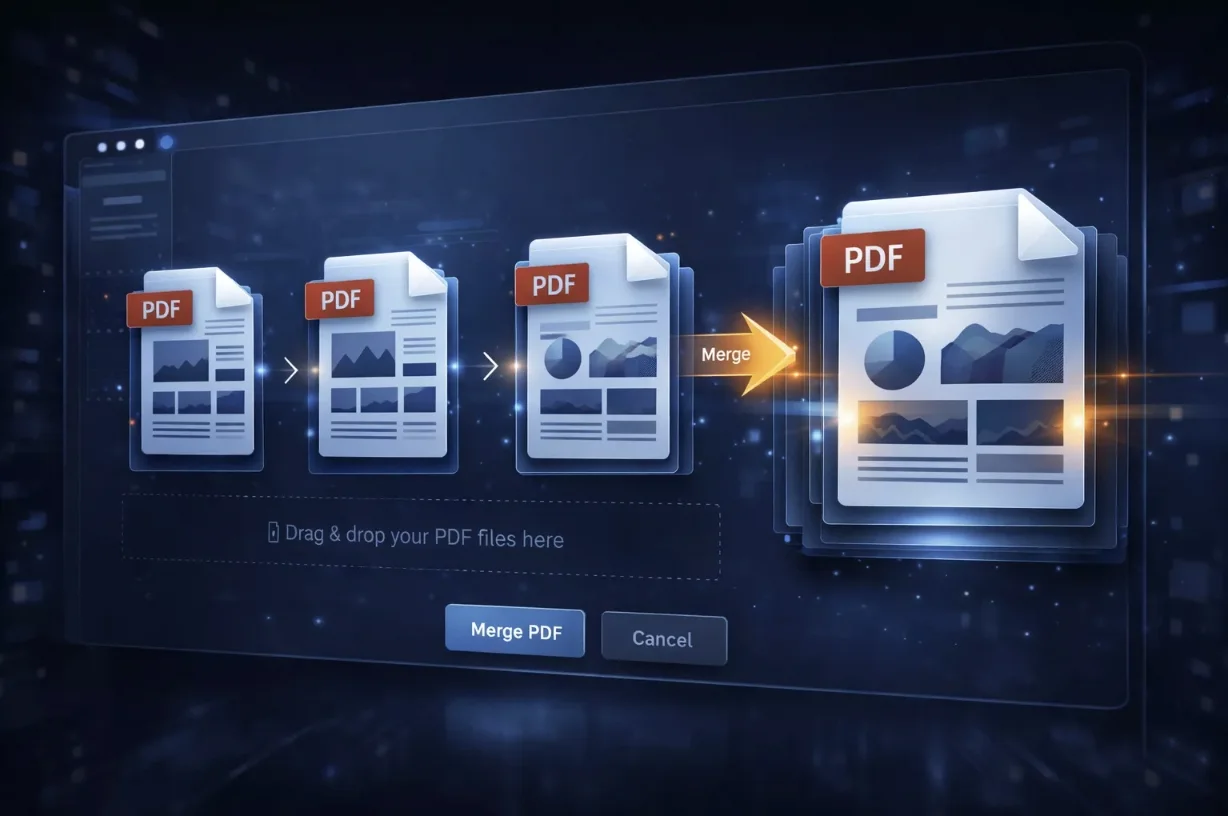
Quick Guide: How to Merge PDF Files Online: 1) Upload your multiple PDF documents to PDFTEQ's Merge Tool. 2) Drag and drop the files to arrange them in your desired order. 3) Click the "Merge PDF" button. 4) Download your combined, single PDF instantly. The process is 100% free, secure, and preserves original quality.
PDF files have become the universal standard for sharing documents across devices, businesses, and industries. Whether you are sending contracts, invoices, reports, study materials, or scanned documents, PDF ensures that your formatting remains intact everywhere.
However, working with multiple PDF files can quickly become inconvenient. Imagine sending five different files instead of one beautifully organized document. This is exactly where the ability to merge PDFs becomes extremely useful.
With PDFTEQ's Merge PDF Online tool, you can combine multiple PDF files into a single document within seconds — without installing heavy software, without losing quality, and without any hidden file limits.
What Does "Merge PDF" Mean?
Merging PDFs simply means combining two or more separate PDF documents into one single, continuous file. For example, if you have:
- File 1: Contract Terms
- File 2: Payment Details
- File 3: Signature Page
After merging, all three documents become a single Contract.pdf. This process keeps the original pages, fonts, and images entirely intact while placing them in a new sequence inside one manageable document.
Why Professionals and Students Merge PDF Files
There are countless practical situations where joining PDFs together is the smartest way to work:
- Business Documents: Companies often send multiple documents to clients. Instead of attaching several confusing files to an email, merging creates a clean, professional package.
- Job Applications: Recruiters prefer a single file. Candidates can easily merge their Resume, Cover Letter, and Certifications into one cohesive application document.
- Legal and Contract Files: Lawyers and consultants frequently merge supporting evidence, terms, and official paperwork into one secure case file.
- Study Materials: Students often combine lecture notes, research papers, and scanned assignments into a single document for easier reading.
How to Merge PDF Files Online (Step-by-Step)
Combining your documents online is incredibly simple and takes less than a minute. Here is how you do it using our free tool:
- Upload Your Files: Select or drag-and-drop the PDF documents you want to combine. You can select multiple files at once.
- Arrange the Page Order: Once uploaded, our visual interface allows you to drag the files to rearrange them. Make sure your Cover Page is first, followed by your main content.
- Merge the Documents: Click the "Merge PDF" button. The tool instantly weaves all pages into a single file.
- Download the Final File: Your merged PDF is ready for download immediately. If the new file is too large for an email attachment, you can instantly shrink it using our Compress PDF tool.
Merge PDF Without Losing Quality
One of the biggest concerns users have is whether merging PDFs reduces resolution or ruins formatting. The good news? PDF merging does not affect quality.
Because the tool simply binds existing pages together without modifying the internal encoding of the content, your images remain razor-sharp, text remains searchable, and layouts stay perfectly unchanged. Your merged document will look exactly like the original files.
Is Merging PDFs Online Safe?
Security is the most important consideration when handling business, legal, or personal documents. A reliable tool like PDFTEQ ensures your privacy through:
- Secure File Uploads: Files are transferred using high-grade TLS/SSL encrypted connections.
- Automatic File Deletion: Your uploaded and processed files are automatically and permanently removed from our servers shortly after you download them.
- No Permanent Storage: We do not read, store, or share your private documents. Period.
Merge PDF vs. Combine PDF – Is There a Difference?
Many people wonder if "Merge PDF" and "Combine PDF" mean different things. In practice, both terms describe the exact same action. Whether you search to merge, combine, or join PDFs, you are looking to assemble multiple documents into one single file.
Frequently Asked Questions
Can I merge PDFs for free without watermarks?
Yes. PDFTEQ allows you to combine PDF files completely free of cost. Unlike other tools that force you to upgrade, we never stamp frustrating watermarks or logos onto your final professional documents.
How do I merge PDF files on a Mac or Windows 10?
Because PDFTEQ is a browser-based online tool, it works flawlessly on all operating systems. Whether you are using a Mac (Safari), Windows 10/11 (Chrome, Edge), or Linux, simply open your browser, upload your files, and click merge. No software installation is required.
Can I merge large PDF files over 100MB?
Yes, our tool handles large, heavy documents with ease. There are no strict artificial limits that interrupt your workflow. If your merged file becomes too large to send via email, you can easily use our compression tool afterwards to reduce the file size.
What if I only want to merge specific pages?
If you have a large document but only want to include certain pages in your final merged file, you should first use a Split PDF tool to extract the specific pages you need. Once extracted, you can upload those specific pages into the Merge tool to create your custom document.
Can I combine PDFs on my iPhone or Android phone?
Absolutely. The tool is 100% mobile-responsive. You can access the website from your smartphone's browser, select PDF files directly from your phone's internal storage or iCloud/Google Drive, and merge them on the go.
Will merging PDFs change my page orientation?
No. If you merge a document that has portrait pages with a document that has landscape pages, the final PDF will preserve those exact orientations. The tool respects the original layout of each individual file.
Ready to organize your documents?
Merge Your PDFs Now — It's Free!
🔒 Need an Offline & Private PDF to Image Solution?
If you are handling sensitive contracts, medical records, or legal files, uploading them to cloud servers isn't always ideal.
Try our dedicated browser-based PDF to JPG converter. It processes files strictly on the client side using your system's local power—meaning your documents never leave your browser, offering true offline-grade security with maximum processing speed.