How to Batch Watermark PDF Files Free Online — Complete Business Guide (2026)
 Md.R K
— Senior PDF Engineer & Document Automation Specialist
15 min read
4,500 words
Md.R K
— Senior PDF Engineer & Document Automation Specialist
15 min read
4,500 words
⚡ Quick Answer — Featured Snippet
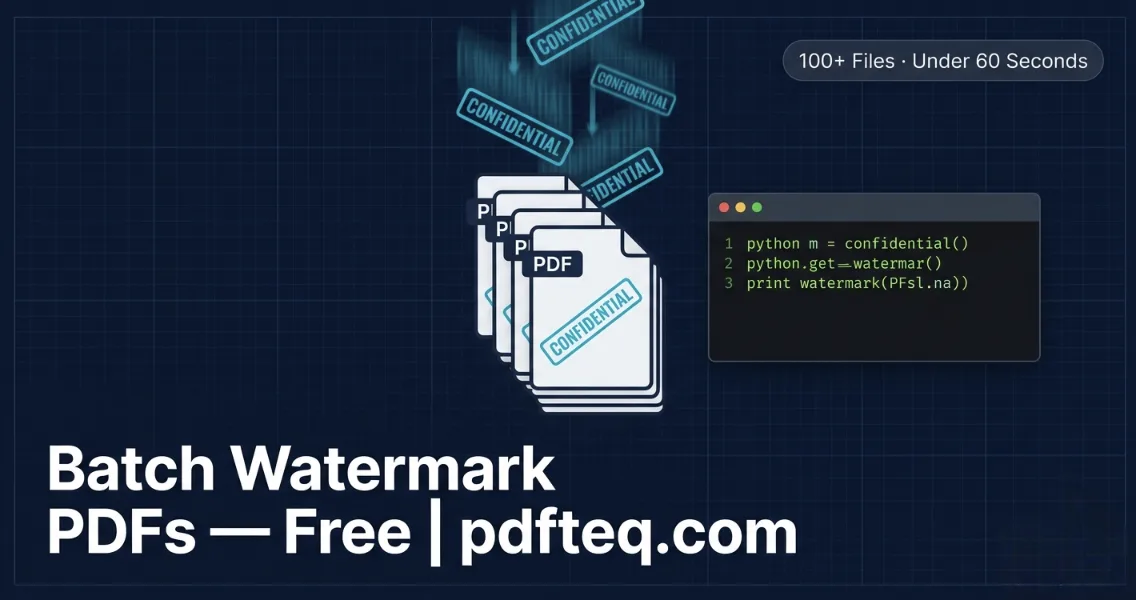
To batch watermark PDF files free online, use PDFteq's browser-based watermark tool to process each file with identical settings — no upload, no login, no software. For batches of 50+ files, use the free Python script with reportlab included in this guide. Both methods are completely free and process files locally on your device.
Watermarking one PDF takes 60 seconds. Watermarking fifty invoices, a hundred contracts, or a thousand real estate listings is a different challenge entirely — and most "free" tools reach for a paywall the moment you try to scale.
This guide covers every practical free method for batch watermarking PDFs in 2026 — from browser workflows that handle 30 files at zero cost, to a fully automated Python script that processes hundreds of files in under a minute.
📋 Table of Contents
- What Is Batch PDF Watermarking & When Do You Need It?
- Choose the Right Method by File Volume
- Method 1: Free Browser Workflow (1–30 Files)
- Method 2: Merge Then Watermark — Document Packets
- Method 3: Python Script Automation (Unlimited, Free)
- Method 4: Adobe Acrobat Action Wizard (Paid)
- Industry-Specific Batch Watermark Configurations
- Establishing a Watermark Standard for Your Organisation
- Batch Tool Comparison Table
- Watermark + Compress + Password: Full Security Workflow
- Pro Tips for High-Volume Watermarking
- FAQ (8 Questions)
- Conclusion
What Is Batch PDF Watermarking & When Do You Need It?
Batch watermarking applies the same watermark configuration to multiple PDF files systematically — either one file after another in a browser workflow, or all files simultaneously via an automated script processing a folder.
You need a batch solution when:
- You produce recurring document sets — weekly reports, monthly invoices, quarterly contracts — and each batch needs consistent security marks or branding.
- You distribute confidential documents to multiple recipients and need every copy stamped before sending.
- You have an archive of existing PDFs that all need retroactive watermarking for copyright or compliance reasons.
- Your photography or design studio produces proof PDFs regularly and manual watermarking is consuming significant time.
- Your legal or HR team processes signed documents each week that need APPROVED or FOR INTERNAL USE stamps.
💡 Core Principle: Consistency Matters More Than Speed
- Identical stamps across all files is more valuable than a fast process with inconsistent results.
- Define your watermark standard first — text, opacity, rotation, position — then choose the tool that applies it most efficiently at your volume.
- Document your settings (screenshot them) so every batch uses the exact same configuration and can be reproduced months later.
Choose the Right Method Based on File Volume
| Volume | Best Method | Cost | Processing Time | Skill Level |
|---|---|---|---|---|
| 1–10 files | PDFteq Browser Tool | Free | 5–15 min | None |
| 10–30 files | PDFteq Browser — Organised Workflow | Free | 15–45 min | Minimal |
| 30–100 files | Python + reportlab script | Free | 2–10 min (after setup) | Basic Python |
| 100–1,000+ files | Python Script or Adobe Action Wizard | Free / ~$23/mo | Under 5 min (automated) | Intermediate |
| Recurring auto-batch | Python folder-watch script | Free | Automatic | Intermediate |
| Enterprise API | PDF API / Custom integration | Paid | Real-time | Developer |
Method 1: Free Browser Workflow (1–30 Files) — No Software, No Login
For most individuals and small teams, PDFteq's free browser workflow is the fastest, cheapest, and most private solution for batches up to 30 files.
1Define your watermark standard before starting
Decide: text or logo? Opacity (25–35% recommended)? Rotation (45° confidentiality, 0°
branding)? Single center or grid tile? Write these down — every file must get an
identical stamp.
2Organise input and output folders
Create a "To Watermark" folder and empty "Watermarked" folder. Place all source PDFs in
the first folder. Use sequential filenames if needed: 001_invoice.pdf, 002_invoice.pdf.
3Open PDFteq in your browser
Navigate to pdfteq.com/tools/watermark-pdf.php.
No login, no account. Files process locally — no upload, no data exposure.
4Process each file with identical settings
Load the first PDF. Configure your watermark to the defined standard. Click Apply. Move
the download to your "Watermarked" folder. Click "Start Over" and load the next file.
Repeat.
5Verify a sample every 5–10 files
Open one watermarked PDF periodically and visually confirm that opacity, rotation, text,
and placement match your standard.
💡 Speed Tip — Dual Tab Workflow: Open two browser tabs — PDFteq in one, your file manager in the other. Drag files directly from the folder into the tool. An experienced user processes 30 files in under 25 minutes using this approach.
📦 Open the Watermark Tool — Free, No Login
Process each PDF with consistent professional stamps. Client-side only — your files never leave your device.
Open Watermark Tool — Free →Method 2: Merge Then Watermark — For Document Packets
When multiple PDFs will be delivered as one combined document — a contract packet, a multi-chapter report, a complete property brochure — it is more efficient to merge them first and watermark the combined document once.
1Collect all component PDFs. Name them sequentially: 01_intro.pdf, 02_terms.pdf, 03_appendix.pdf.
2Go to pdfteq.com/tools/merge-pdf.php. Upload all components in order and download the merged document. The Merge tool is also fully client-side — no server upload.
3Open the merged PDF in PDFteq's watermark tool. Apply your watermark once — it stamps every page of the combined document consistently. Download the final watermarked packet.
💡 When Merge-Then-Watermark Makes Sense: One merge plus one watermark operation is always faster than watermarking each component separately. It also guarantees identical placement across every page.
Method 3: Free Python Script Automation (30–Unlimited Files)
For batches larger than 30 files, recurring workflows, or fully automated document pipelines, a Python watermarking script is the most efficient free solution.
Setup (One-Time)
- Install Python 3.8+ from python.org (free)
- Install libraries:
pip install reportlab PyPDF2
Complete Batch Text Watermark Script
# batch_watermark.py — Free unlimited PDF batch watermarking
# Requirements: pip install reportlab PyPDF2
# Usage: python batch_watermark.py

import os
from reportlab.pdfgen import canvas
from reportlab.lib.colors import Color
import PyPDF2

# ── CONFIGURE THESE VALUES ──────────────────────────────────────
WATERMARK_TEXT = "CONFIDENTIAL"   # your stamp text
OPACITY        = 0.30             # 0.0 invisible → 1.0 fully opaque
FONT_SIZE      = 60               # points
ROTATION       = 45               # degrees (45° diagonal, 0° horizontal)
INPUT_FOLDER   = "./input_pdfs"   # folder containing your source PDFs
OUTPUT_FOLDER  = "./watermarked"  # output folder (created automatically)
# ────────────────────────────────────────────────────────────────

def create_watermark(path, pw=612, ph=792):
    """Generate a single-page watermark PDF overlay."""
    c = canvas.Canvas(path, pagesize=(pw, ph))
    c.saveState()
    c.setFillColor(Color(0.5, 0.5, 0.5, alpha=OPACITY))
    c.setFont("Helvetica-Bold", FONT_SIZE)
    c.translate(pw / 2, ph / 2)
    c.rotate(ROTATION)
    tw = c.stringWidth(WATERMARK_TEXT, "Helvetica-Bold", FONT_SIZE)
    c.drawString(-tw / 2, 0, WATERMARK_TEXT)
    c.restoreState()
    c.save()

def apply_watermark(src, dst, wm_path):
    """Merge watermark overlay onto every page of the source PDF."""
    reader  = PyPDF2.PdfReader(src)
    # FIX: .pages returns a list; merge_page() needs a single PageObject.
    # The original code passed the whole list, which crashed with TypeError.
    wm_page = PyPDF2.PdfReader(wm_path).pages[0]
    writer  = PyPDF2.PdfWriter()
    for page in reader.pages:
        page.merge_page(wm_page)
        writer.add_page(page)
    with open(dst, "wb") as f:
        writer.write(f)

# ── RUN ──────────────────────────────────────────────────────────
os.makedirs(OUTPUT_FOLDER, exist_ok=True)
wm_temp = "_wm_temp.pdf"
create_watermark(wm_temp)

count = 0
for fn in sorted(os.listdir(INPUT_FOLDER)):
    if fn.lower().endswith(".pdf"):
        src = os.path.join(INPUT_FOLDER, fn)
        dst = os.path.join(OUTPUT_FOLDER, f"watermarked_{fn}")
        apply_watermark(src, dst, wm_temp)
        count += 1
        print(f"  ✓  {fn}")

os.remove(wm_temp)
print(f"\n✅ Done — {count} files watermarked → {OUTPUT_FOLDER}/")
💡 How to Run: Save as batch_watermark.py. Place all
PDFs in input_pdfs/ folder in the same directory. Open a terminal,
navigate to the folder, and run python batch_watermark.py. Watermarked
files appear in watermarked/. Processing 100 files typically completes
in under 15 seconds on any modern laptop.
Quick Configuration Reference
WATERMARK_TEXT— change to any text: DRAFT, APPROVED, © 2026 YourNameOPACITY = 0.25— subtle;0.35— standard;0.50— strongROTATION = 0— horizontal;45— diagonal (recommended)INPUT_FOLDER = "/path/to/your/pdfs"— any absolute or relative path
Logo (Transparent PNG) Watermark Variant
Replace the create_watermark() function with this version to use a
company logo instead of text:
# Logo watermark — transparent PNG recommended for best results
LOGO_PATH   = "logo.png"   # PNG with transparent background
LOGO_W      = 200          # width in PDF points (72 pts = 1 inch)
LOGO_H      = 100          # height — adjust proportionally

def create_watermark(path, pw=612, ph=792):
    c = canvas.Canvas(path, pagesize=(pw, ph))
    c.saveState()
    c.setFillAlpha(OPACITY)
    c.translate(pw / 2, ph / 2)
    c.rotate(ROTATION)
    c.drawImage(
        LOGO_PATH,
        -LOGO_W / 2, -LOGO_H / 2,
        width=LOGO_W, height=LOGO_H,
        mask='auto'    # handles PNG transparency correctly
    )
    c.restoreState()
    c.save()
Method 4: Adobe Acrobat Action Wizard (Paid — Most Powerful)
Adobe Acrobat Pro (~$23/month) includes an Action Wizard that creates reusable automated sequences for batch processing entire folders of PDFs.
1Open Acrobat Pro → Tools → Action Wizard → Create New Action.
2Add step: Edit PDF → Watermark → Add Watermark. Configure text or image watermark with opacity, rotation, page range.
3Set input to a folder of PDFs, output to a separate results folder. Name and save the Action.
4Run the Action. Acrobat processes every PDF in the folder automatically.
💡 Best Use Case: Enterprise teams processing 200+ files monthly who need complex watermarks with dynamic date stamps, multi-layer images, and custom fonts. The saved Action means any team member can run the batch without configuring settings each time.
Industry-Specific Batch Watermark Configurations
Law Firms
Corporate Finance
Photography Studios
Real Estate Agencies
Schools & Universities
Healthcare Providers
Establishing a Watermark Standard for Your Organisation
1. Write a One-Page Watermark Policy
Specify: what text to use for each document category, which tool to use, and the exact settings: opacity, rotation, and pattern. Store this in your shared documentation wiki.
2. Create a Visual Reference Sample
Produce one watermarked PDF using PDFteq with your agreed settings and circulate it as the visual gold standard. Any team member can compare their output before sending.
3. Screenshot Your PDFteq Settings Panel
Take a screenshot of the configuration panel showing exact slider values, mode (Text/Logo), and pattern (Single/Grid). Add this to your internal policy document. New team members can replicate settings exactly without guesswork.
4. Use the Python Script for High-Volume Teams
If your team watermarks 30+ files monthly, store the batch script in your shared repository with settings pre-configured. Include a README. Any team member runs one command to process any folder.
Batch Watermark Tool Comparison Table
| Tool | True Batch? | Free? | No Upload? | Text+Logo? | Volume Limit | Skill |
|---|---|---|---|---|---|---|
| PDFteq (browser) | Sequential | ✔ Free | ✔ Client-side | ✔ Both | Unlimited | None |
| Python + reportlab | ✔ True batch | ✔ Free | ✔ Local | ✔ Both | Unlimited | Basic Python |
| iLovePDF Pro | ✔ Yes | ✘ Paid | ✘ Uploads | ✔ Both | Unlimited | None |
| Adobe Acrobat Pro | ✔ Action Wizard | ✘ ~$23/mo | ✔ Desktop | ✔ Both | Unlimited | Intermediate |
| Smallpdf Business | ✔ Yes | ✘ Paid | ✘ Uploads | ✔ Both | Unlimited | None |
| PDF24 (free) | ✘ One at a time | ✔ Yes | ✘ Uploads | Text only | Limited | None |
* Based on publicly available feature information and tool documentation, April 2026. Pricing may change.
Watermark + Compress + Password: Full Security Workflow
For maximum document security, combine watermarking with file compression and password protection. The correct sequence matters:
- Watermark first — embeds the stamp in the content stream.
- Compress second if file size increased significantly — PDFteq Compress PDF reduces size without affecting the watermark quality.
- Password-protect last — wrap the result in an encryption layer for distribution. Share the password through a separate channel.
💡 Why This Order? Watermarking a password-protected PDF may fail. Compressing before watermarking adds unnecessary work. Watermark → Compress → Protect is the only order that consistently produces clean, secure output.
Pro Tips for High-Volume PDF Watermarking
💡 Tip 1 — Name Files Systematically Before Batching
Rename source PDFs systematically before any batch run: 2026-04_Invoice_001.pdf.
The Python script preserves original filenames with a "watermarked_" prefix — systematic
naming compounds into a clean, sortable archive.
💡 Tip 2 — Always Test One File Before the Full Batch
Process one test file first. Open the output at 200% zoom. Verify text, opacity, rotation, and coverage on every page. Only then run the full batch.
💡 Tip 3 — Never Overwrite Source Files
Always output watermarked files to a separate folder. Never overwrite the originals. This preserves your clean master copies for re-processing with different settings if needed.
💡 Tip 4 — Grid Tile for Any Anti-Copy Purpose
A single centered stamp can be cropped in seconds by anyone with basic image editing tools. A 3×4 Grid Tile covers the full page — removing it requires destroying substantial content, which is immediately obvious.
💡 Tip 5 — Combine Split, Watermark, and Merge for Section-Level Control
Split a large document into sections by page range. Apply different watermarks to each section. Merge the watermarked sections back into the final document. All three tools are free, client-side, and require no login.
💡 Tip 6 — Compress After Watermarking, Not Before
Image logo watermarks can increase PDF file size noticeably. After batch watermarking, run the output folder through PDFteq Compress PDF for any files that grew significantly. Compressing after watermarking preserves quality.
💡 Tip 7 — Reorder Pages Before Watermarking Long Documents
For documents where page order matters, use PDFteq Reorder PDF to arrange the pages correctly first, then watermark the final ordered document.
Frequently Asked Questions
Use PDFteq's free browser tool at pdfteq.com/tools/watermark-pdf.php to process each PDF sequentially with identical settings — no upload, no login. For batches of 50+ files, use the free Python + reportlab script provided in this guide. Both options process files locally on your device with no cost and no file count limits.
Most free online tools process one PDF at a time — simultaneous multi-file batch is typically a paid feature. PDFteq's browser workflow for each file is fast since there is no upload or processing delay. For 50+ files, the Python automation script in this guide is the fastest free solution: 100 files in under 15 seconds.
Use the Python + reportlab script in Method 3 of this guide. Install Python 3 and the reportlab library (both free). Place your 100 PDFs in the input_pdfs/ folder. Run python batch_watermark.py in a terminal. The script processes all 100 files in under 15 seconds, outputting watermarked copies to the watermarked/ folder.
Yes. PDFteq's browser tool handles sequential batch processing free of charge and with no installation. The Python + reportlab script in this guide handles true parallel batch processing for free. Adobe Acrobat's Action Wizard is powerful but costs around $23/month — unnecessary for most teams.
If all pages need the same watermark: merge first, then watermark the combined document once — faster and guarantees perfect consistency. If different sections need different watermarks: watermark each section separately first, then merge. Both PDFteq Merge and Watermark tools are free and client-side.
Create a watermark standard document: text or logo, opacity, rotation, and layout. Screenshot PDFteq's settings panel as the visual reference and share it with your team. For high-volume teams, store the Python batch script with pre-configured values in your shared repository — one-command batch processing for any folder.
The correct sequence is: (1) Watermark first — embeds the stamp in the page content stream. (2) Compress second if needed — reduces file size without affecting watermark quality. (3) Password-protect last — adds encryption around the final processed document. Watermarking a password-protected file often fails.
PDFteq's dual-tab browser workflow. Open PDFteq in one browser tab and your file manager in another. Drag each PDF from the file manager directly into PDFteq, click Apply, move the download to your output folder. An experienced user completes 20 files in 15–20 minutes with perfectly identical results.
Conclusion — The Complete Free Batch Watermark Toolkit for 2026
The right method scales with your volume:
- 1–30 files: PDFteq browser tool — fastest, most private, no software, no login, works on every device.
- 30–1,000+ files: Python + reportlab — free, fully automated, processes an entire folder in seconds on your local machine.
- Enterprise scale: Adobe Acrobat Pro Action Wizard — most feature-rich, worth the cost at serious monthly volume.
📦 Start Watermarking Your PDFs — Free, Right Now
No software, no sign-up, no server upload. Process your first PDF in under 90 seconds.
Open Watermark Tool — Free →Related Guides & Tools
🔐 Watermark PDF Without Uploading — Privacy Guide 2026
Client-side, zero-upload watermarking: how it works and why it matters.
🖊️ 7 Ways to Add Watermark to PDF (Free & Paid)
All methods for 2026 — Adobe Acrobat, Preview, online tools, and more.
🔀 Merge PDF — Free, No Upload
Combine multiple PDFs before batch watermarking. Client-side and instant.
Md.R K leads the PDF processing engine at PDFteq with 9 years of experience in browser-based document automation, WebAssembly PDF rendering, and bulk-processing pipeline design.