Remove PDF Metadata: Privacy & Security Guide
Discover what hidden data is stored in your PDFs and how to remove sensitive information before sharing documents with external parties. Complete privacy protection guide with step-by-step instructions to safeguard your organizational data and personal information.
📑 Quick Navigation
⚠️ What Hidden Data is in Your PDFs?
When you create a PDF from Microsoft Word, save a scan, or export a document, hidden metadata gets stored automatically into the PDF file. This information includes personal data, company information, and technical details that could compromise your privacy and organizational security. Many organizations are unaware of what data their PDFs contain until an audit or security review reveals the extent of unintended information exposure.
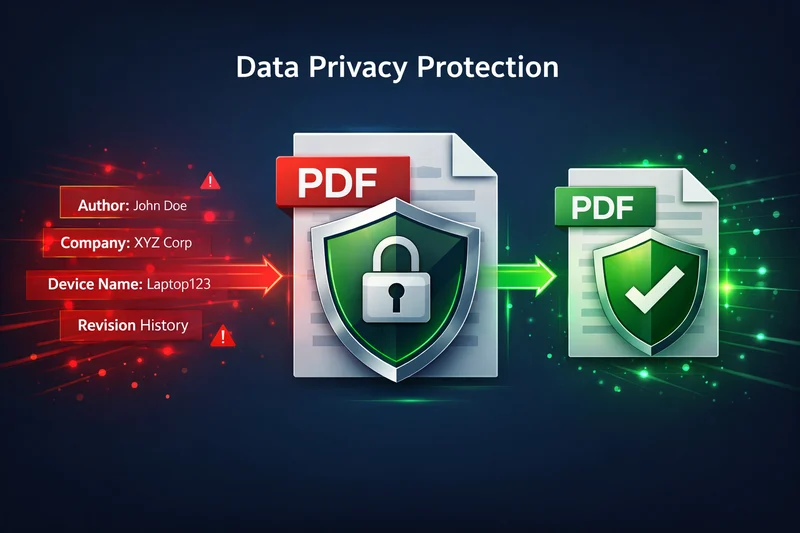
The following categories of data are commonly found embedded in PDF metadata:
📝 Document Properties
- Author name (real identity)
- Company/organization name
- Department information
- Document title
- Subject or description
🖥️ Technical Data
- Software used to create
- Software version number
- Computer/device name
- Operating system details
- Creation date & time
📊 Usage History
- Modification count
- Revision history
- Last modified date
- Editing times
- Tracked changes
🔗 Advanced Data
- Embedded fonts
- Form field values
- Document bookmarks
- File locations
- Network paths
🚨 Real-World Privacy Risks and Case Studies
Real Example: What Metadata Exposed - Legal Disaster
A law firm shared a "blank" PDF contract template with opposing counsel, but the metadata revealed:
- Author: "John Smith, Senior Partner, Smith & Associates"
- Company: "Smith & Associates Law Firm, New York"
- Creator: "Microsoft Word 16.0"
- Modification count: "47" revisions
- Last modified: "Client Name XYZ Corporation"
Consequences: The opposing party could determine exactly how many rounds of negotiation had occurred, which client was involved, and the law firm's internal structure. This revealed negotiation strategy and client relationships that should have remained confidential. The law firm faced potential malpractice claims and professional embarrassment.
Industries at Highest Risk
Certain industries face greater consequences from metadata exposure:
- Legal: Contract negotiations, client lists, litigation strategy, confidential case information
- Financial: Pricing strategies, financial forecasts, merger negotiations, competitive sensitive deals
- Healthcare: Patient information, treatment details, facility locations, medical records
- Government: Classified information, official titles, national security details, internal communications
- Business: Proprietary processes, employee names and titles, facility locations, organizational structure
- Personal: Home address, real name (when using pseudonym), personal device information
📚 Want to Learn How to EDIT Metadata for SEO?
This guide focuses on removing metadata for privacy protection. If you want to optimize and edit metadata for better search rankings, professional branding, and document management, read our complete guide to editing PDF metadata. That comprehensive guide covers metadata fields, SEO optimization, best practices, and step-by-step instructions with 10 expandable FAQ answers.
🛡️ How to Remove PDF Metadata: Complete Step-by-Step Guide
Method 1: PDFTeq Online Editor (Easiest & Most Recommended)
PDFTeq Metadata Editor is the simplest and safest way to remove metadata. It works in your browser, requires no account, is completely free, and your files never leave your device. This method is recommended for individuals and organizations of all sizes.
- Go to PDFTeq Metadata Editor
- Upload your PDF (or drag and drop directly)
- Leave all metadata fields empty (delete existing values completely)
- Click "Save New Metadata" to process
- Download your clean, privacy-protected PDF
- Completely free with no limits or restrictions
- Works in your browser (no software installation)
- Files stay on your device (client-side processing = maximum privacy)
- Works on all devices: Windows, Mac, Linux, Mobile
- Fast processing (usually seconds)
- No account creation or tracking
Method 2: Windows File Properties
Windows built-in tools can remove some basic metadata:
- Right-click the PDF file
- Select "Properties"
- Click "Details" tab
- Click "Remove Properties and Personal Information"
- Select "Remove all possible properties from this file"
- Click "Apply" then "OK"
Method 3: Adobe Acrobat Pro (Professional Option)
If your organization has Adobe Acrobat Pro subscription:
- Open your PDF in Adobe Acrobat Pro
- Go to File → Properties
- Click "Additional Metadata"
- Review and remove all sensitive fields
- Go to File → Save As → Sanitized PDF
✅ How to Verify Metadata Was Completely Removed
After removing metadata, verification is critical to ensure your privacy is actually protected:
- Method 1: Upload the cleaned PDF back to PDFTeq and verify all fields show empty
- Method 2: Right-click the PDF → Properties → Details (Windows) and verify all fields are blank
- Method 3: Use an online metadata checker tool to confirm complete removal
- Method 4: Share with a trusted colleague and ask them to check the properties
- Method 5: Have your IT department verify using command-line tools
📋 Complete Metadata Removal Checklist Before Sharing
Before Publishing Any Document Externally
Best Practices for Secure Document Sharing
✓ DO These Things
- Always check metadata before sharing
- Remove sensitive information completely
- Use PDFTeq for quick cleaning
- Verify removal afterwards
- Keep internal documents separate
- Document your metadata policy
- Train employees on privacy
✗ DON'T Do These Things
- Share PDFs without checking
- Assume metadata isn't visible
- Include company secrets
- Forget to verify removal
- Share employee information
- Mix internal and external documents
- Ignore compliance requirements
📚 Learn More About PDF Metadata
This guide focuses on privacy and metadata removal. For comprehensive information on editing metadata for SEO optimization, professional branding, and document management, read our complete guide to editing PDF metadata. That guide covers metadata fields, SEO impact, best practices, and advanced techniques.
Protect Your Privacy Right Now
Don't let your documents expose sensitive information. Use PDFTeq to instantly remove all metadata before sharing with anyone external. Secure your organization's information in seconds.
Remove Metadata Now