How to Rotate a PDF Permanently —
Free, No Login, No Watermark
Learn how to rotate PDF pages correctly, permanently save their orientation, and avoid common problems when a PDF appears sideways or upside down.

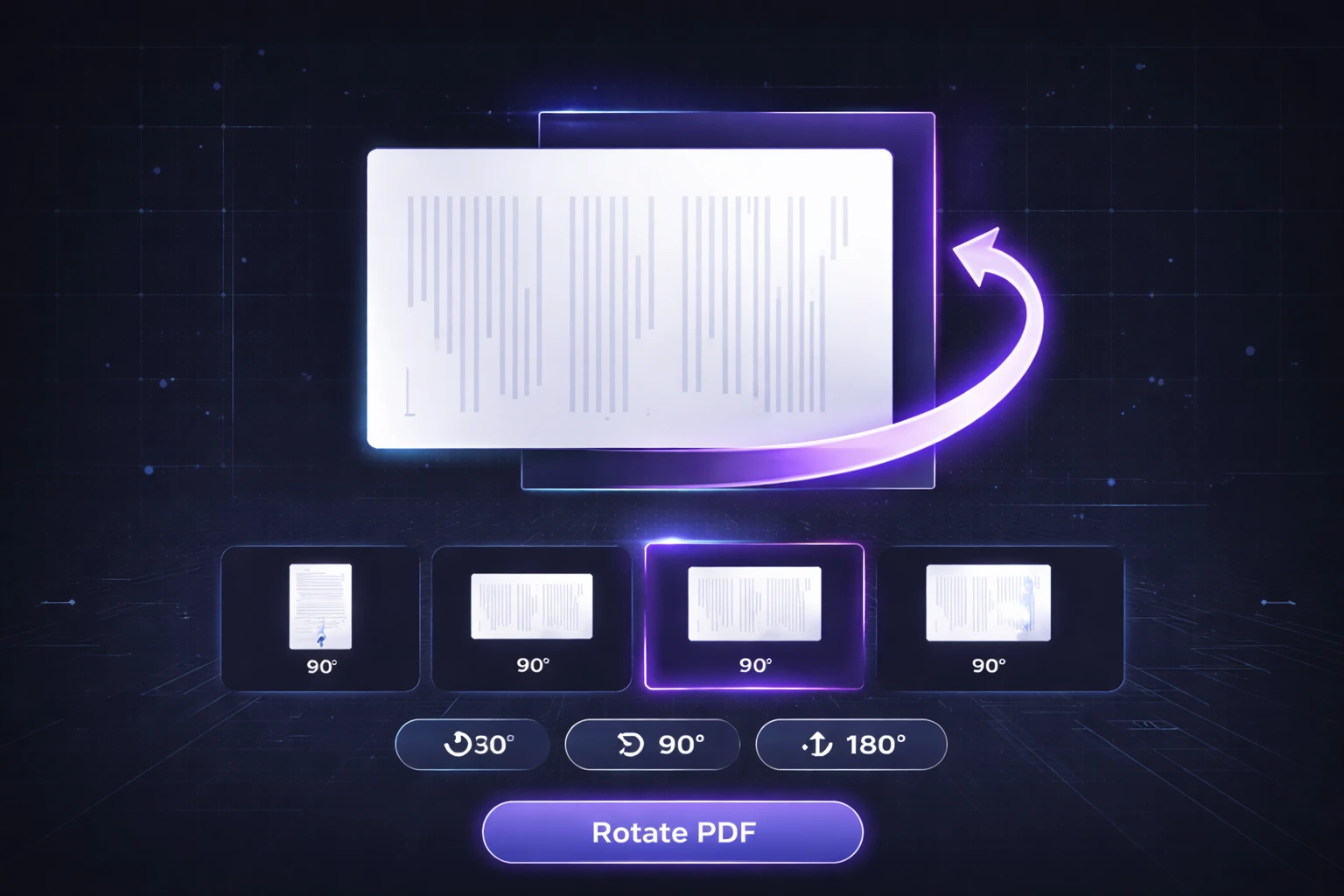
To permanently rotate a PDF, the page's rotation value needs to be saved in the PDF itself rather than changing only the temporary viewing orientation. With PDFTeq's Rotate PDF tool , you can preview PDF pages, rotate individual pages or all pages, and generate a corrected PDF directly in your browser.
A PDF can look perfectly normal on your screen and still open sideways on another device. This is one of the most common problems people encounter with scanned documents, photographed pages, reports, forms, and PDFs created from different sources.
The problem becomes especially frustrating when you rotate a page in a PDF viewer and expect that orientation to become part of the actual document. In many cases, the viewer is only changing how the page is displayed.
A permanent solution requires the PDF page's rotation information to be stored in the document itself. This guide explains how that works and how to rotate PDF pages online without installing desktop software.
Why Does a PDF Page Appear Sideways?
PDFs can contain page-level information that controls how a page is presented by PDF viewers. One important value is the page rotation setting.
A page may also contain content that was created in a different orientation. For example, a landscape document can be inserted into a portrait PDF, or a scanned page can be captured at the wrong angle.
Simply changing the viewer's display orientation does not always solve the underlying document problem.
Temporary vs. Permanent Rotation
| Method | What Changes? | Saved in PDF? |
|---|---|---|
| Viewer Rotation | How the document is displayed | Not necessarily |
| PDF Page Rotation | Page rotation information | Yes |
If you need the corrected orientation to travel with the PDF, the rotation information must be written to the PDF file.
What Is the PDF /Rotate Value?
PDF page dictionaries can contain a
/Rotate
entry. This value tells compatible PDF viewers how the page
should be rotated when it is displayed.
Common values are:
-
0— no rotation -
90— quarter-turn rotation -
180— upside-down orientation -
270— three-quarter-turn rotation
Page rotation is different from taking a screenshot, converting the page to an image, and rebuilding the PDF. When the page rotation information is changed without rasterizing the document content, the original text, vectors, and embedded images can remain intact.
What You Can Do With PDFTeq's Rotate PDF Tool
- Rotate individual pages using the page preview controls.
- Rotate all pages together when the entire document has the same orientation problem.
- Preview pages visually before generating the corrected PDF.
- Rotate pages by 90° increments using clockwise or counterclockwise controls.
- Reset your changes before generating the final file.
- Process the PDF in your browser rather than uploading it to a PDF-processing server.
- Use the tool on mobile devices with a modern browser.
Need to Rotate a PDF?
Fix sideways or upside-down PDF pages directly in your browser.
Rotate PDF FreeHow to Rotate a PDF Permanently
PDFTeq's Rotate PDF tool is designed to make the process simple, even when working from a smartphone.
Open PDFTeq's Rotate PDF tool . No account is required.
Select a PDF from your device. The tool generates thumbnails so you can visually inspect the document pages.
Use the rotate buttons below each page to rotate individual pages. If the whole document needs the same correction, use the Rotate All option.
Review the page thumbnails and make sure the document orientation is correct before generating the final PDF.
Select Generate & Download PDF. The corrected PDF is generated in your browser and becomes available for download.
PDFTeq's Rotate PDF tool uses browser-side JavaScript libraries to load, preview, modify, and generate the PDF. The rotation workflow does not require sending the selected PDF to a remote PDF-processing API.
Does Rotating a PDF Reduce Quality?
Rotation itself does not inherently require converting every page into a new image. PDF files can store page orientation separately from the page's actual content.
This is important because re-rendering a PDF as images can introduce unnecessary quality loss, increase file size, and potentially remove useful document features such as selectable text.
When a PDF library changes page rotation information rather than rasterizing the entire page, the existing PDF content can remain in its original form.
Text and Searchability
A PDF that contains a text layer should retain that text layer when page rotation is handled through PDF page properties rather than by converting the page into a flat image.
Images and Resolution
Rotating a page is different from resizing or recompressing its embedded images. A rotation-only operation does not require changing the underlying image resolution.
Common Reasons to Rotate PDF Pages
Scanned Documents
Scanned documents can sometimes contain pages that were fed into the scanner sideways or upside down. Rotating those pages makes the final document easier to read and share.
Mobile Scans and Photos
Documents captured using smartphones can occasionally end up with an unexpected orientation after being converted to PDF. Rotating the affected page can correct the final document.
Landscape Pages in Portrait Documents
Reports and academic documents often contain tables or diagrams that work better in landscape orientation. Correcting the orientation of those pages can make the document much easier to read.
Business Documents
Contracts, invoices, forms, statements, and internal reports may contain individual pages that were scanned differently from the rest of the document.
Academic and Research PDFs
Research papers frequently contain wide tables, charts, and appendices. Correcting page orientation can improve readability without changing the document's overall structure.
Tips for Rotating PDF Pages Correctly
Tip 1: Rotate Only the Pages That Need It
If only one or two pages are sideways, avoid rotating the entire document. Use the individual page controls instead.
Tip 2: Check the Page Preview
Always inspect the thumbnails before generating the final PDF. This is particularly important when working with documents that contain mixed portrait and landscape pages.
Tip 3: Use 180° for Upside-Down Pages
If the page is upright but completely upside down, a 180° rotation is normally the appropriate correction.
Tip 4: Do Not Confuse Rotation With Cropping
Rotation changes page orientation. Cropping changes the visible page boundaries. If content is actually cut off, rotation alone will not fix the problem.
Tip 5: Verify the Final PDF
After downloading the corrected document, open it in another PDF viewer or on another device to confirm that the orientation remains correct.
Fix Your PDF Orientation Now
Rotate individual pages or the entire PDF directly in your browser.
Rotate My PDFPeople Also Ask
- How do I permanently rotate a PDF?
- How do I rotate only one page in a PDF?
- How do I rotate a PDF without Acrobat?
- Can I rotate a PDF on my phone?
- How do I fix a sideways PDF?
- How do I fix an upside-down PDF?
- Does rotating a PDF reduce quality?
- Can I rotate all PDF pages at once?
-
What is the PDF
/Rotatevalue? - Can I rotate a PDF without uploading it to a server?
Frequently Asked Questions
Conclusion
Rotating a PDF is simple when the problem is a page-orientation setting, but it is important to understand the difference between changing a viewer's display and changing the PDF document itself.
For documents with sideways, upside-down, or incorrectly oriented pages, a page-level rotation operation is often the cleanest solution because it does not require rebuilding the entire document as images.
PDFTeq's Rotate PDF tool lets you preview the document, rotate individual pages or all pages, and generate a corrected PDF directly in your browser.